How to use FlexChallenge
Every screen, every button, and the things that surprise people. Last updated: September 13, 2026.
On this page
Video walkthrough
A quick tour of every screen: getting started, Home, today's tasks, the calendar and stats.
Getting started
First launch walks you through four steps: pick or build a challenge, choose a mode, review it, turn on reminders.
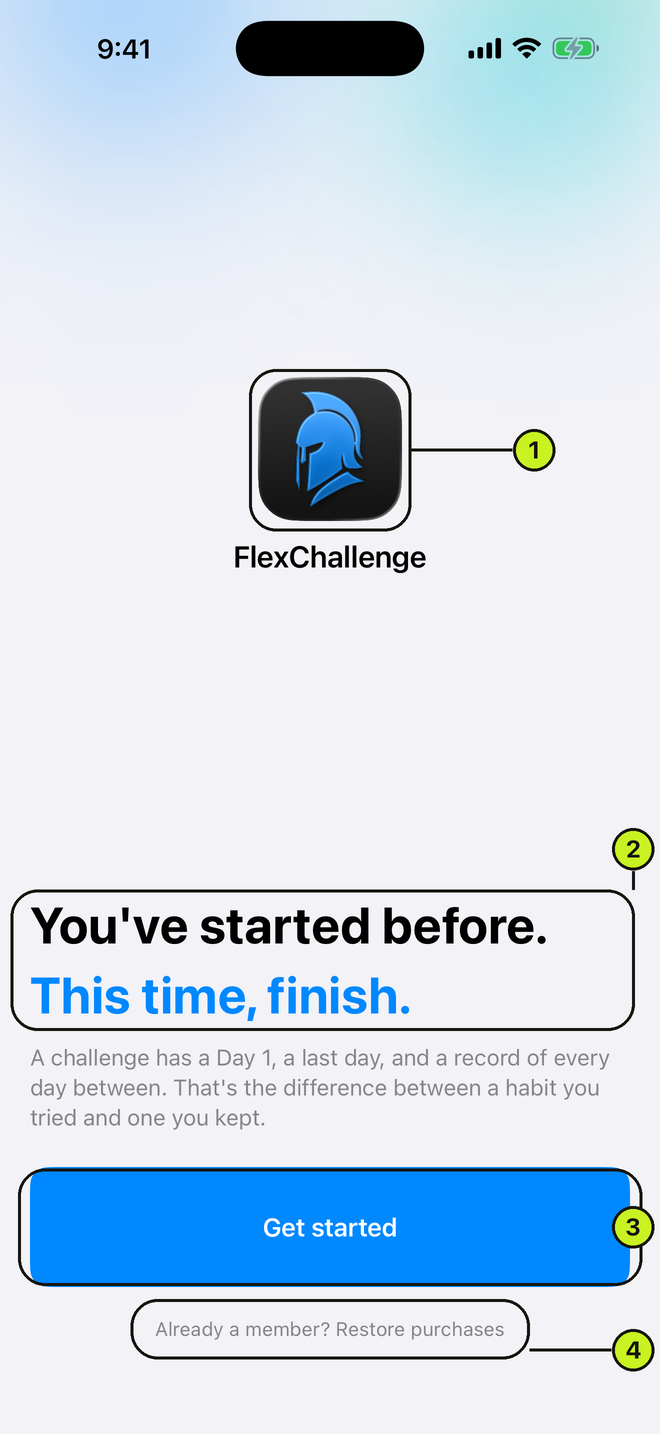
- 1. App logo and name
- 2. The headline
- 3. Get started
- 4. Already a member? Restore purchases
- Start the setupFirst launch → Get started → Set up my challenge
- Restore an existing subscription insteadWelcome screen → Already a member? Restore purchasesIf a challenge already exists on this device you go straight into the app; if not, you land on the path picker.
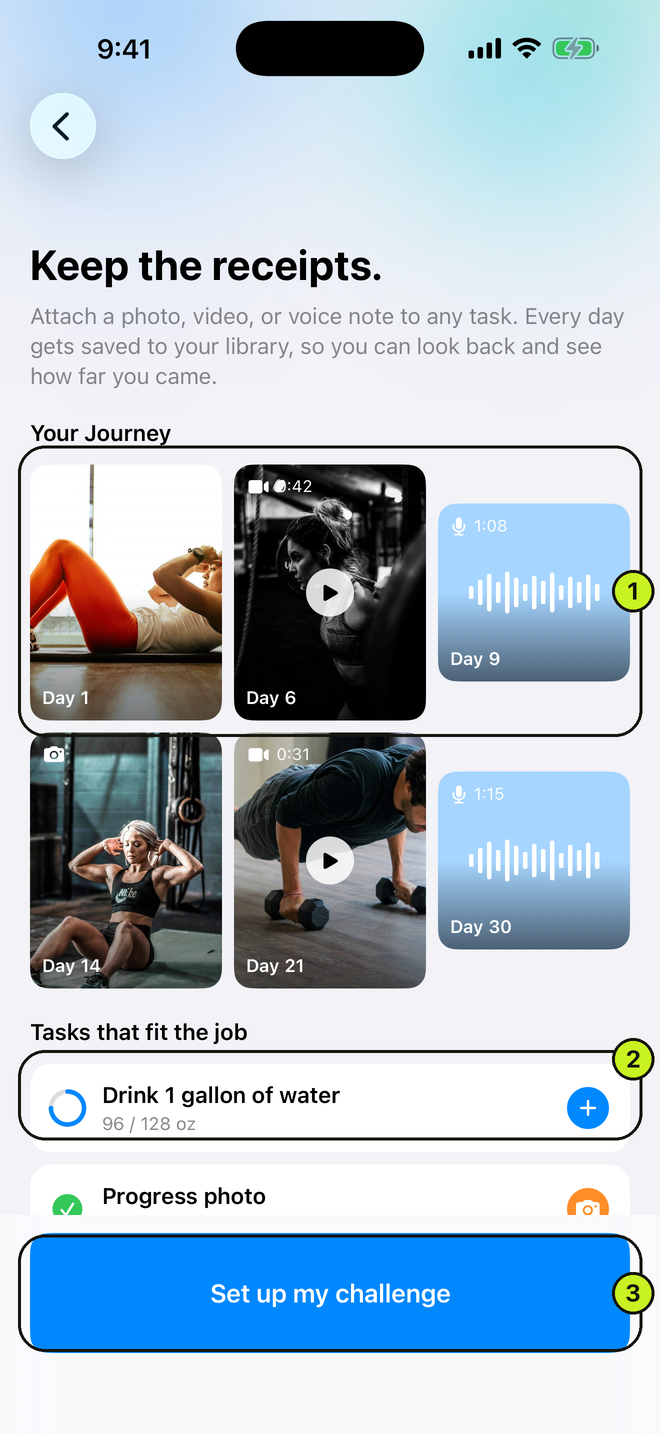
- 1. Your Journey — an example of the media library
- 2. Tasks that fit the job
- 3. Set up my challenge
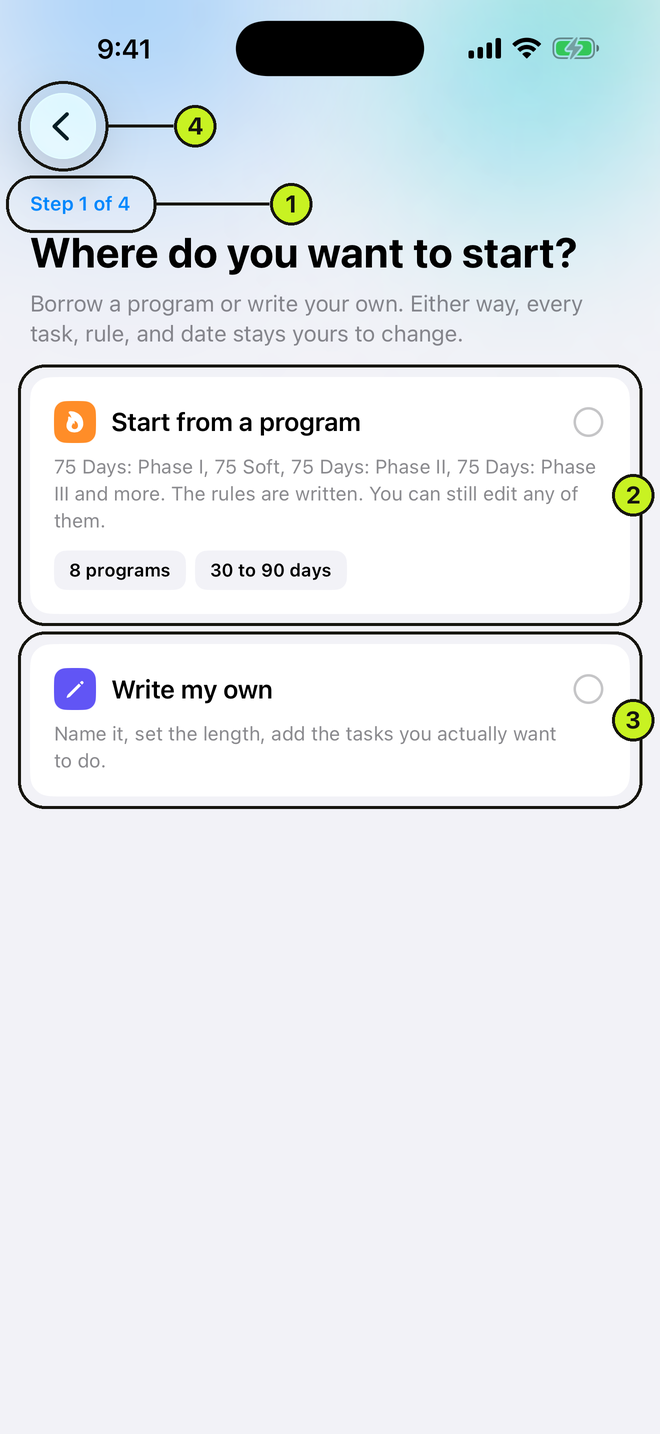
- 1. Step 1 of 4
- 2. Start from a program, with program-count chips
- 3. Write my own
- 4. Back chevron
Choose a path
- Start from a programStep 1 of 4 → Start from a programOpens the list of built-in programs.
- Write my ownStep 1 of 4 → Write my ownSkips the program list and opens the builder with an empty challenge.
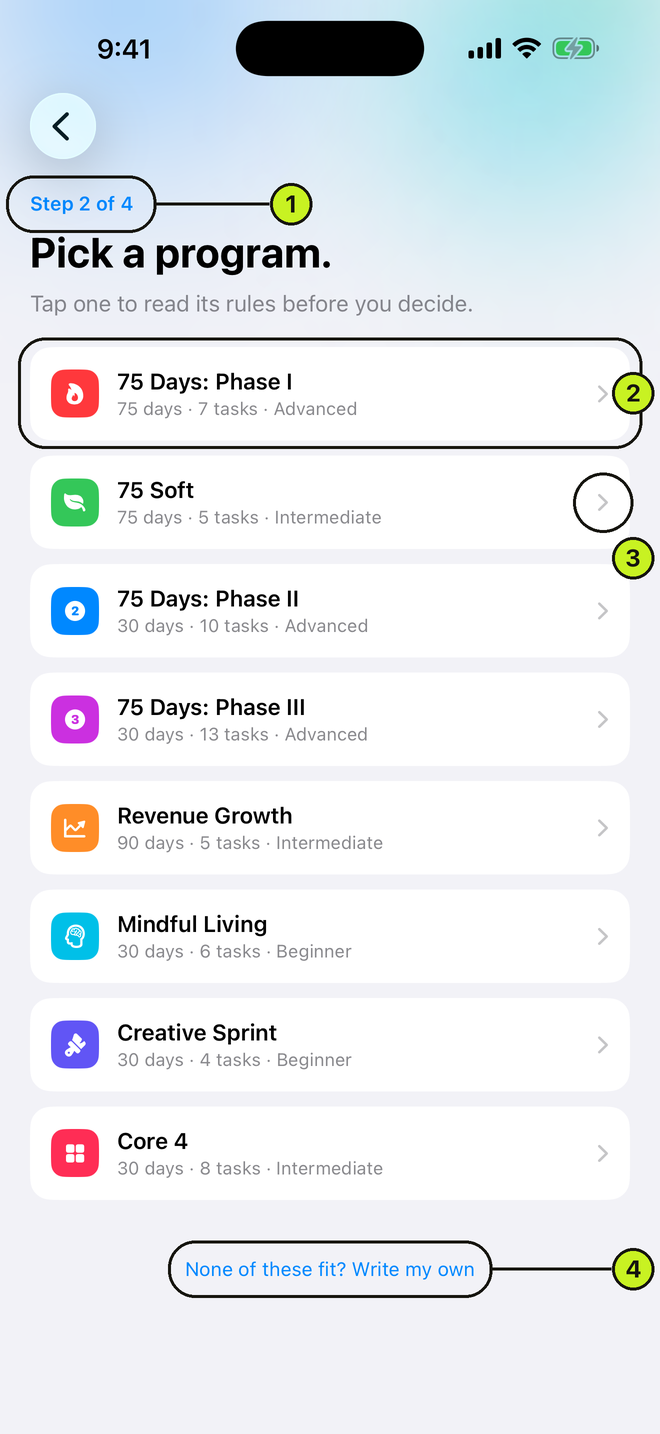
- 1. Step 2 of 4
- 2. A program row: name plus "N days · M tasks · level"
- 3. Chevron opens the detail
- 4. None of these fit? Write my own
Pick a program
- Open a program's detailStep 2 of 4 → tap a program rowThe detail shows the description, The rules, the Every day task list, prerequisites, and a health disclaimer on physical programs.
- Use it as-isProgram detail → Use this programSkips the builder and goes straight to the mode picker.
- Adjust it firstProgram detail → Customize it firstSeeds the challenge from the program, then opens the builder.
Eight programs during setup, nine in the app. The first-launch picker hides Habit Stacking because it has no preset tasks — it needs its own setup flow. Once you are in the app, the template picker (Home → +) lists all nine, Habit Stacking included.
| Program | Days | Level |
|---|---|---|
| 75 Days: Phase I | 75 | Advanced |
| 75 Soft | 75 | Intermediate |
| 75 Days: Phase II | 30 | Advanced |
| 75 Days: Phase III | 30 | Advanced |
| Revenue Growth | 90 | Intermediate |
| Mindful Living | 30 | Beginner |
| Creative Sprint | 30 | Beginner |
| Habit Stacking | 30 | Beginner — in-app only |
| Core 4 | 30 | Intermediate |
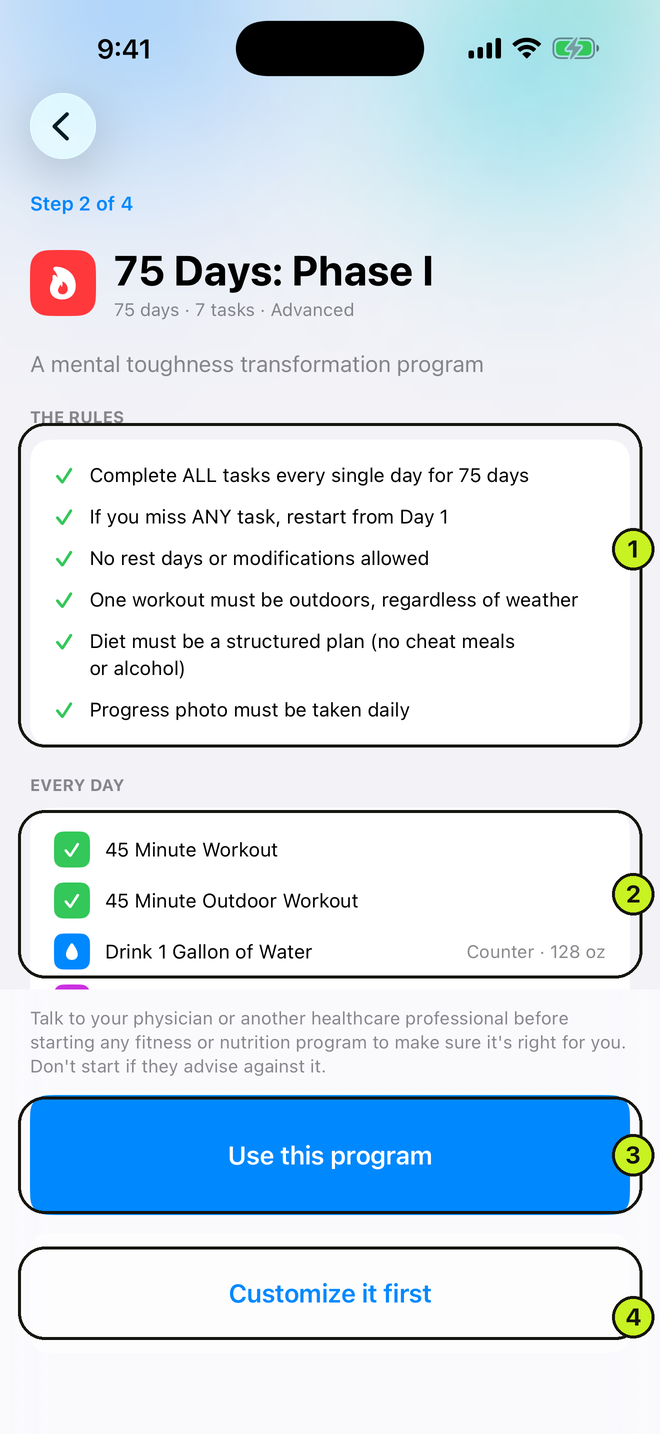
- 1. THE RULES — what the program demands
- 2. EVERY DAY — the tasks it creates
- 3. Use this program
- 4. Customize it first
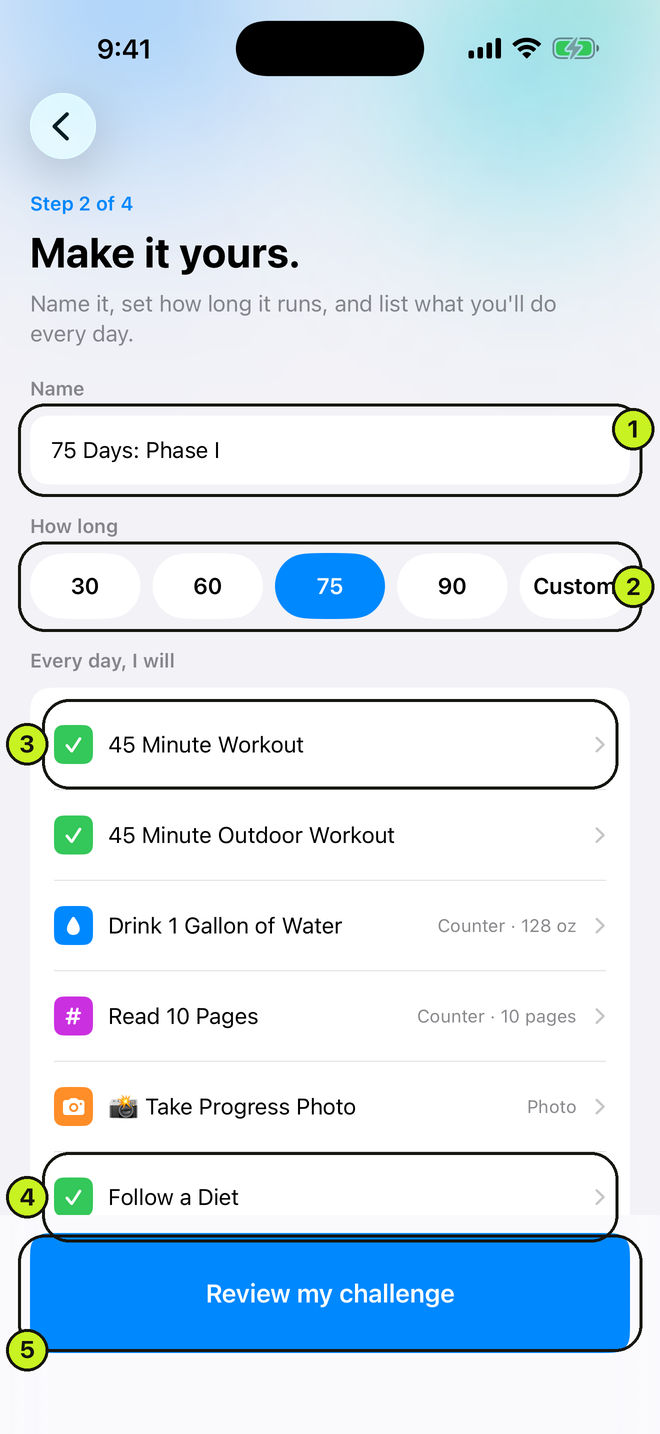
- 1. Name field
- 2. Duration chips 30/60/75/90 plus Custom
- 3. A task row — tap to edit it
- 4. Scroll for the rest of the list
- 5. Review my challenge
Build your own
- Name itBuild screen → name field
- Set the lengthBuild screen → How long → 30 / 60 / 75 / 90, or CustomCustom accepts 7 to 365 days; anything outside that is clamped.
- Add a suggested taskBuild screen → Every day, I will → tap a suggestion chipSix suggestions: Workout 45 min, 10,000 steps, No alcohol, Meditate, Drink 64 oz water, Read 10 pages. A chip disappears once you have used it.
- Add a blank taskBuild screen → Add a taskOpens the task sheet right away: title, type, category, target, unit.
- Remove a taskBuild screen → tap a task → Remove taskDisabled on the last task. A challenge needs at least one.
- ContinueBuild screen → Review my challengeNeeds a name, a length of 7 to 365 days, and at least one titled task. Untitled leftovers are dropped silently.
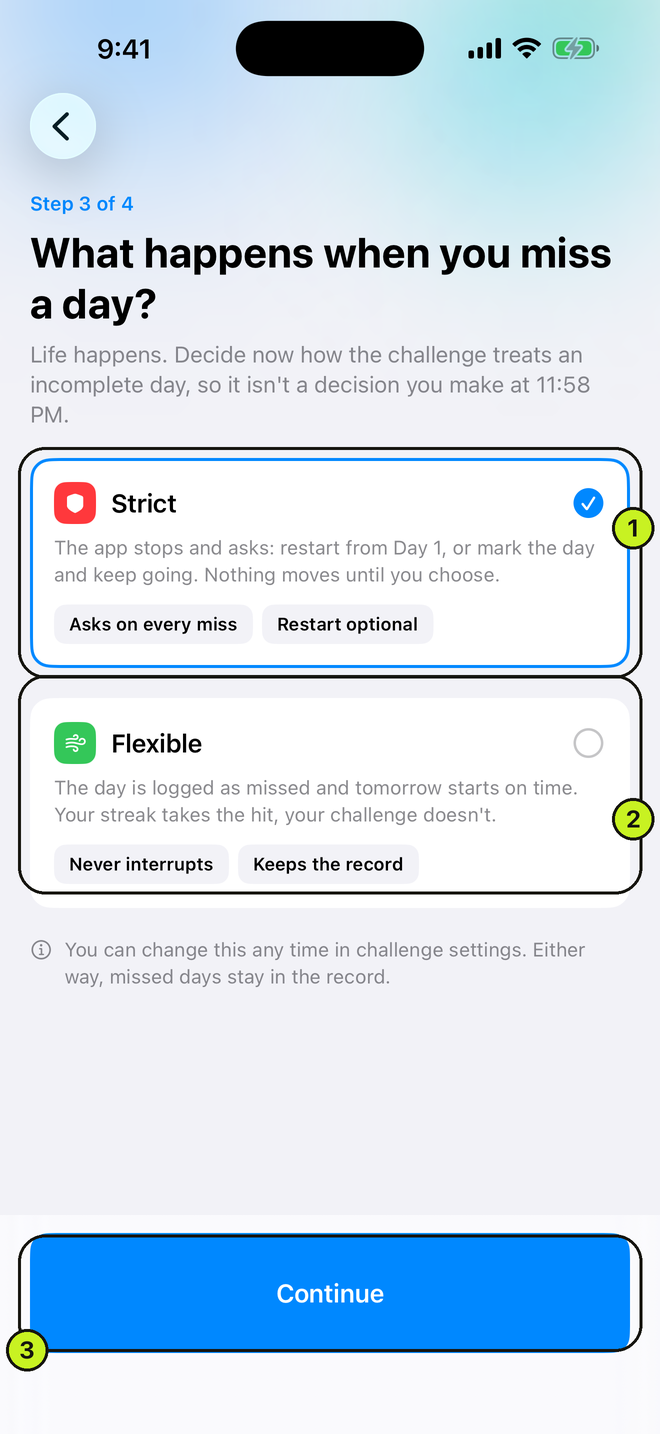
- 1. Strict — the app stops and asks on every miss
- 2. Flexible — the day is logged missed and tomorrow starts on time
- 3. Continue
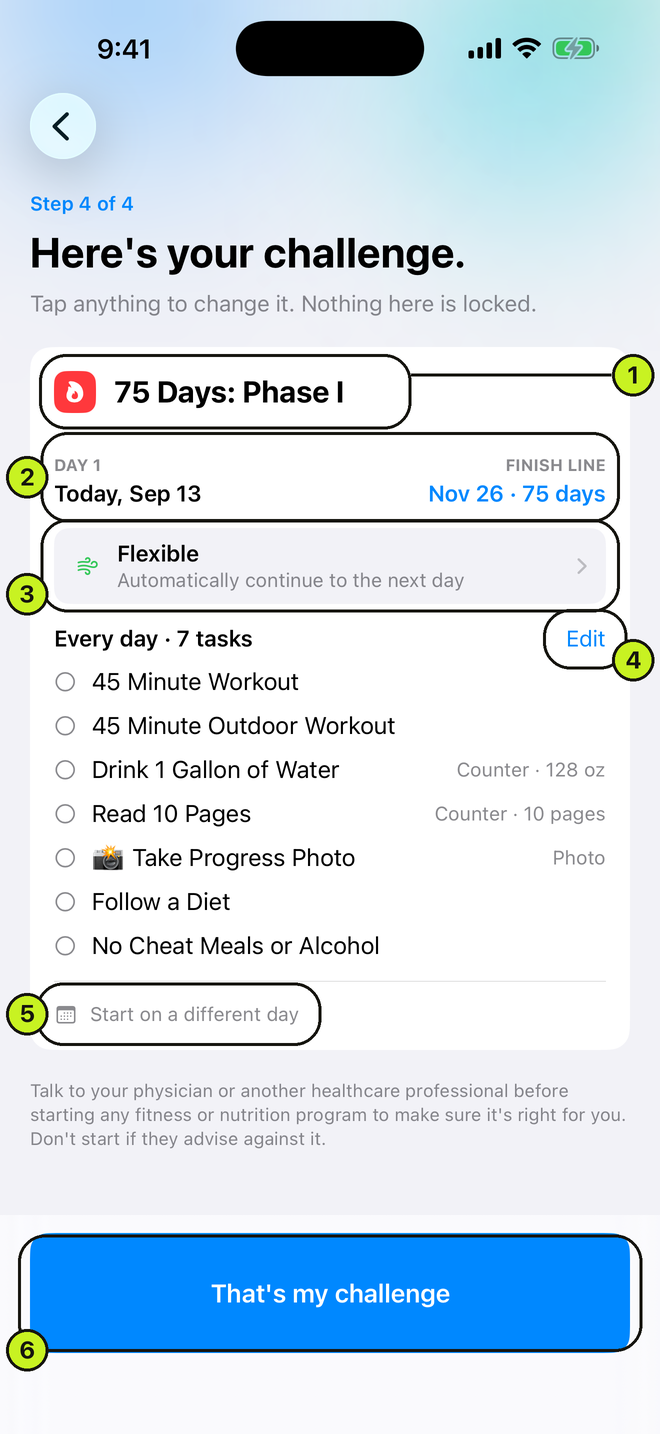
- 1. Challenge name
- 2. Day 1 and Finish line dates
- 3. Mode row, tap to change
- 4. Edit beside the task count
- 5. Start on a different day
- 6. That's my challenge
Mode and review
- Pick StrictStep 3 of 4 → Strict → ContinueOn a missed day the app stops and asks: restart from Day 1, or mark the day and keep going.
- Pick FlexibleStep 3 of 4 → Flexible → ContinueThe day is logged as missed and tomorrow starts on time. Either way the miss stays in the record.
- Change the mode from ReviewStep 4 of 4 → tap the mode row
- Edit the tasks from ReviewStep 4 of 4 → Edit
- Start on a later dateStep 4 of 4 → Start on a different day → pick a date → DonePicking today clears the schedule; picking a later day makes the challenge scheduled.
- ConfirmStep 4 of 4 → That's my challenge
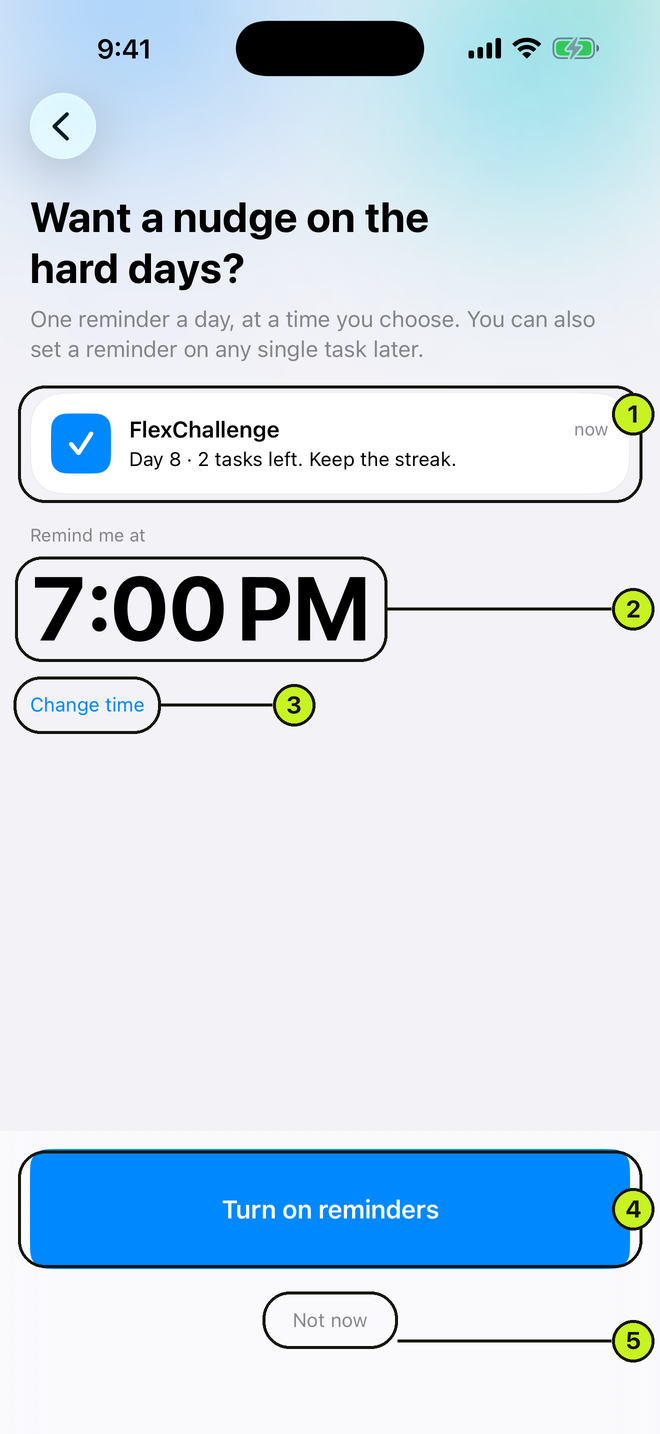
- 1. Example notification
- 2. Default 7:00 PM reminder time
- 3. Change time reveals the wheel picker
- 4. Turn on reminders
- 5. Not now
- Set the daily reminder timeReminders → Change time → wheel pickerDefaults to 7:00 PM.
- Turn reminders onReminders → Turn on remindersTriggers the iOS permission prompt. Declining does not block setup. The reminder is only actually scheduled when the challenge goes live, so quitting at the paywall never leaves a stray notification behind.
- Skip remindersReminders → Not now
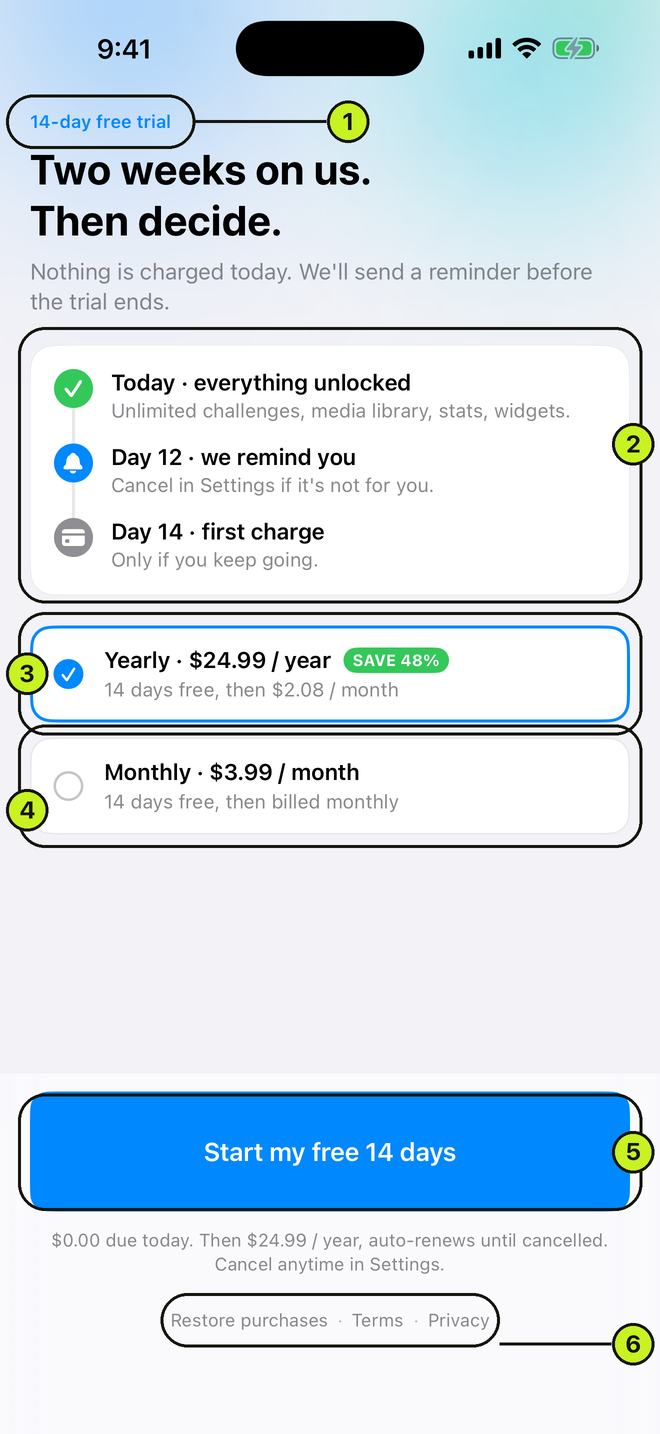
- 1. "N-day free trial" eyebrow
- 2. Three-step timeline: today, reminder, first charge
- 3. Yearly, selected
- 4. Monthly
- 5. Start my free trial
- 6. Restore / Terms / Privacy footer
- Start the free trialPaywall → Start my free N-day trialShown only when the App Store confirms you are eligible. One trial per Apple Account, ever.
- Subscribe without a trialPaywall → SubscribeShown when you have subscribed before, or when eligibility cannot be confirmed in time.
- Switch monthly and yearlyPaywall → tap a plan rowBoth paywalls default to yearly.
- Go liveAfter purchase → Let's goThe challenge is created, reminders are scheduled, and the app opens. A scheduled challenge reads "starts Mon, Sep 22" instead of "starts now."
Quit halfway through setup? Relaunch and the app restores your draft at the Review step. The mode choice is not restored, so check it before you continue.
Home dashboard
Three tabs run the app: Home, Challenge, Calendar.
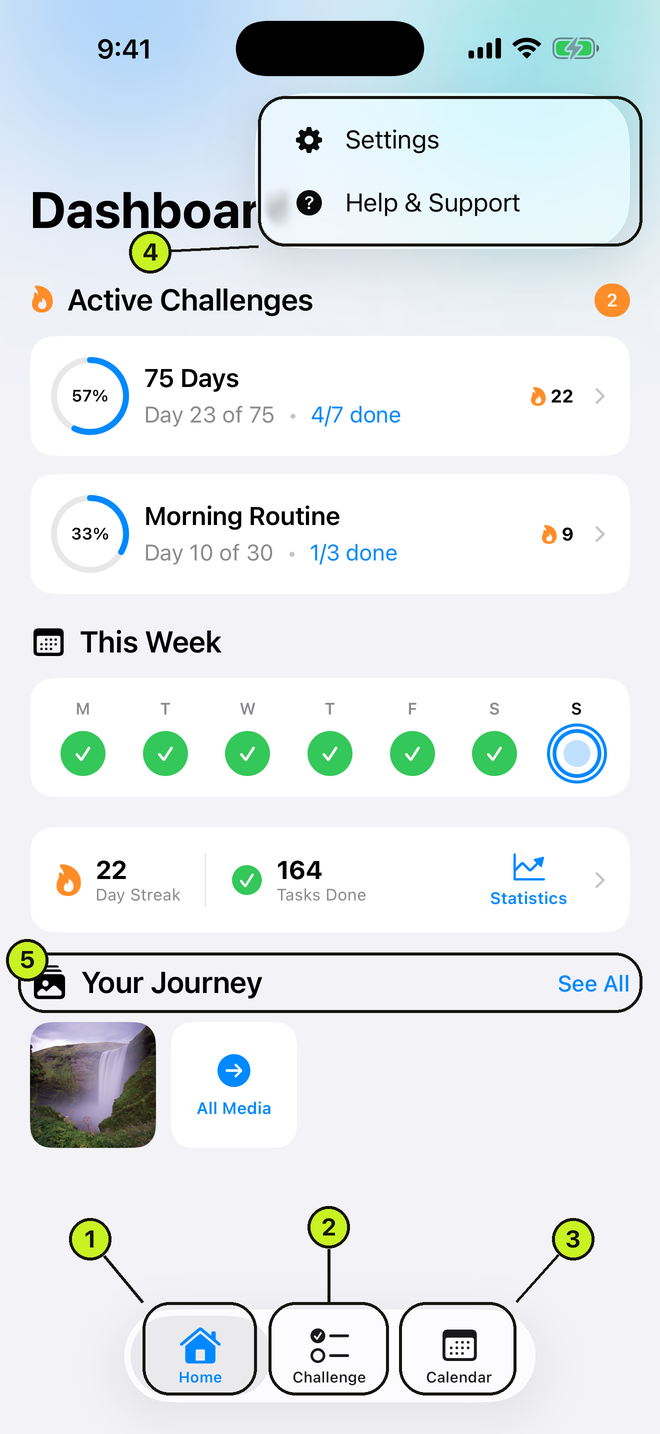
- 1. Home tab
- 2. Challenge tab — today's checklist
- 3. Calendar tab — the full grid
- 4. ⋯ menu: Settings and Help & Support
- 5. Your Journey + See All
- Open a challenge's task listHome → tap an active challenge cardSwitches the Challenge and Calendar tabs to that challenge. The card shows a completion ring, "Day N of M", "X/Y done", and a streak count.
- Card shortcutsHome → long-press a challenge card → Open / Settings / Delete
- Delete from HomeHome → long-press a card → Delete → Keep Media or Delete MediaKeep Media leaves your photos, videos, and voice notes on the device.
- Open a recent dayHome → This Week strip → tap a day dotIf more than one challenge ran that day, a picker appears.
- Open StatisticsHome → Insights card
- Open the media galleryHome → Your Journey → See All
- Create a challengeHome → + (top right)With nothing active yet, the big Start Your First Challenge button does the same thing.
- App settings and helpHome → ⋯ (top right) → Settings or Help & Support
- Start a scheduled challenge earlyHome → Upcoming Challenges → Start Now
- Start one whose date has arrivedHome → Ready to Start → Start
- Reopen an inactive challengeHome → Inactive → tap a rowOpens its settings. Long-press gives Open / Settings / Delete.
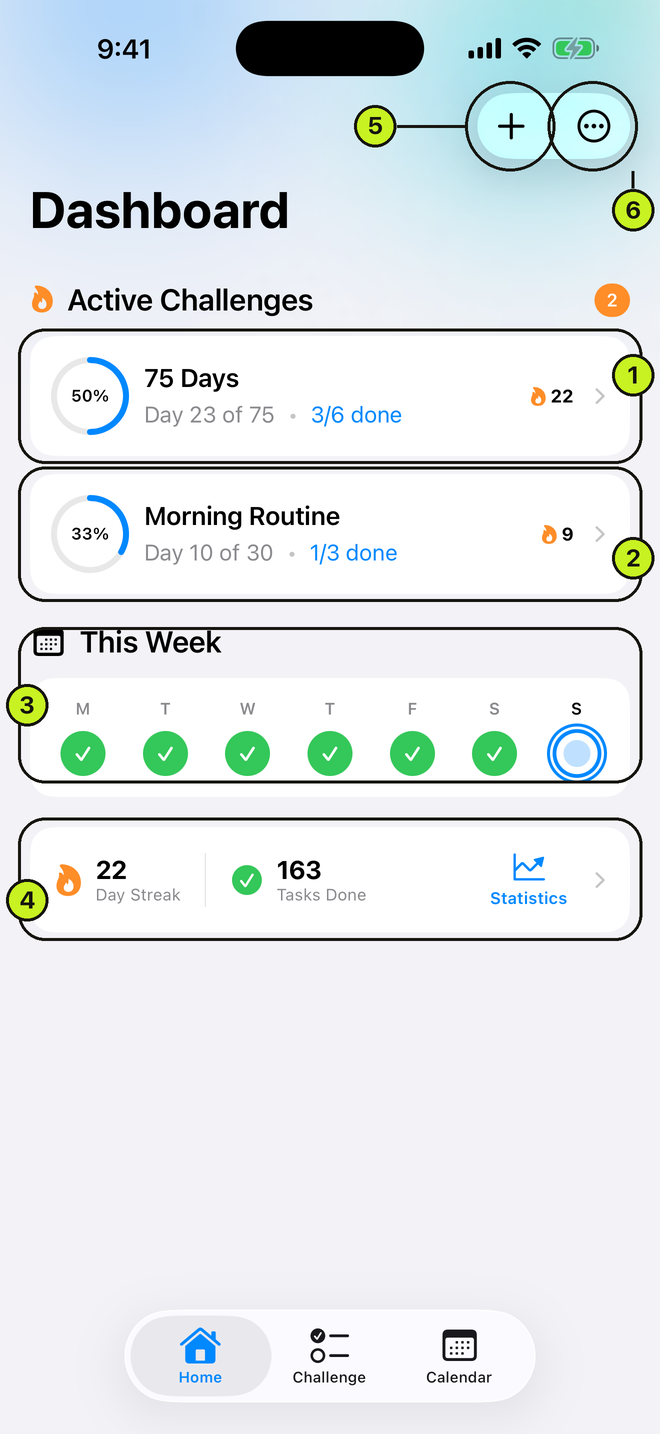
- 1. Challenge card: ring, Day N of M, X/Y done, streak
- 2. A second active challenge
- 3. This Week strip
- 4. Streak and Tasks Done, tap for Statistics
- 5. + new challenge
- 6. ⋯ menu
Today's tasks
The Challenge tab is the daily checklist for whichever challenge you last selected.
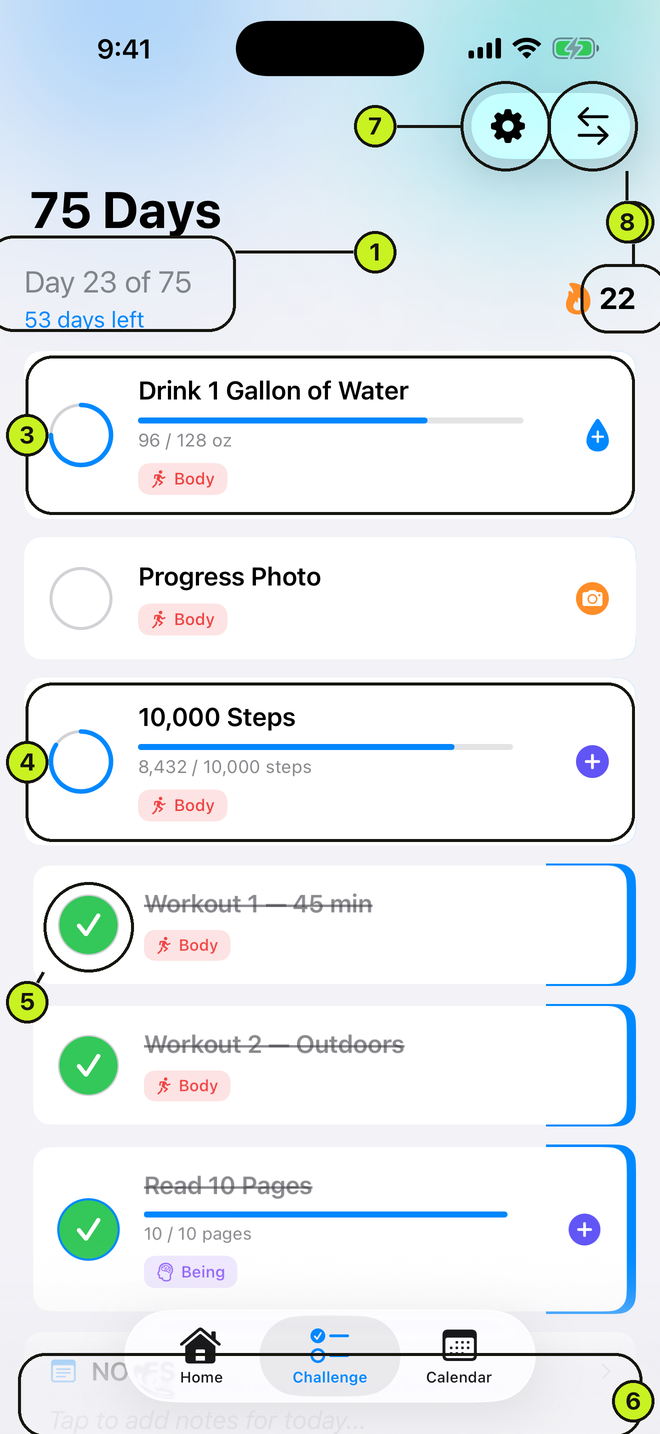
- 1. Day N of M and days left
- 2. Streak flame
- 3. Water task: ring, progress, droplet +
- 4. Steps task: ring and count
- 5. Completed task, green circle
- 6. NOTES card
- 7. ⚙ Challenge settings
- 8. ⇄ Switch challenge
- See today's progressChallenge tab → headerThe streak counts consecutive fully complete days, looking back at most 30 days.
- Switch challengeChallenge tab → ⇄ (top right)Only appears when more than one challenge is active.
- Open this challenge's settingsChallenge tab → ⚙ (top right)
- Write today's noteChallenge tab → scroll to NOTES → tap → write → Save
Finishing every task fires three seconds of confetti. Turn it off in Home → ⋯ → Settings → Experience → Completion Confetti.
Task types
Six kinds of task, each with its own completion gesture.
- Standard — tap to completeChallenge tab → tap the circle on the left of the rowTap again to uncomplete.
- Water — log an amountChallenge tab → blue droplet + (or the progress ring) → log
- Counter — add to the countChallenge tab → indigo + (or the progress ring) → log
- Steps — sync from HealthChallenge tab → green circular-arrows buttonReads step count only, never writes. Grant the Health permission when you create or edit a steps task.
- Photo or video — captureChallenge tab → orange camera or video button → shoot → SaveSaving auto-completes the task. Video is capped at 60 seconds.
- Audio — recordChallenge tab → pink mic button → record → Stop → SaveNo length limit. Saving auto-completes the task.
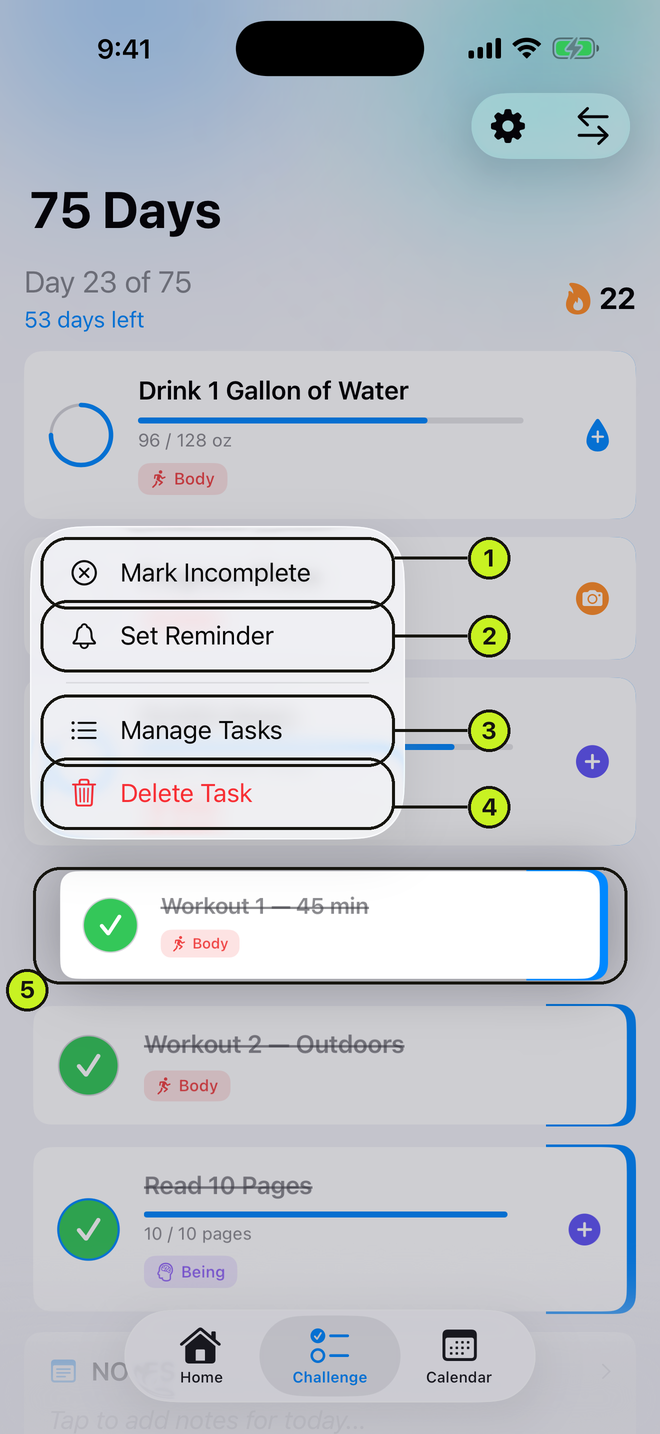
- 1. Mark Incomplete
- 2. Set Reminder
- 3. Manage Tasks
- 4. Delete Task
- 5. The task you long-pressed, lifted
The counter sheet
- Quick add a portionCounter sheet → Quick Add rowDefaults are 8/12/16/20/32 for ounces and 250/350/500/750/1000 for millilitres.
- Type an exact amountCounter sheet → number field → blue +
- Nudge or resetCounter sheet → +10 / −10 / Reset−10 stops at zero. Reset zeroes the count and clears the milestone celebrations.
Water, counter, and steps tasks complete themselves the moment the value reaches the target, and uncomplete themselves if it drops back below — unless you ticked the task by hand, in which case your choice sticks.
Hitting 100 percent fires confetti and closes the counter sheet after about a second and a half. That is expected, not a crash.
Editing & reordering tasks
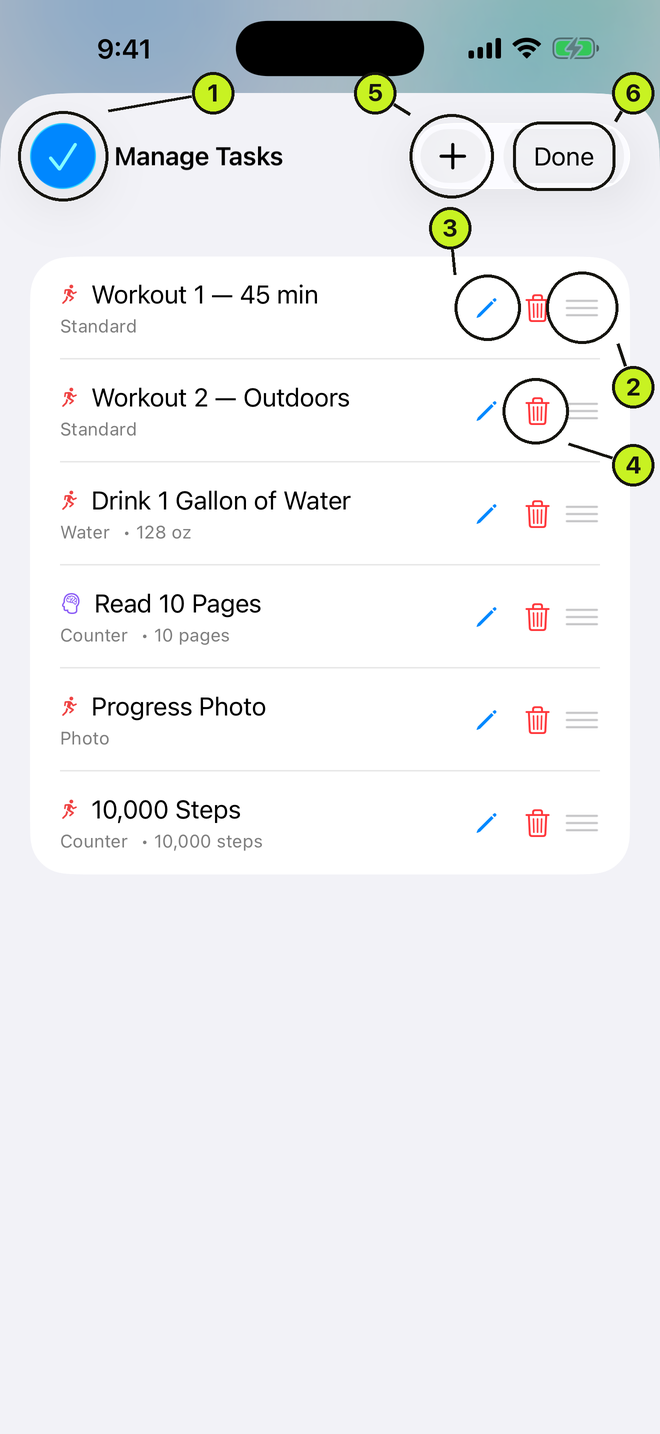
- 1. Edit, now a blue check
- 2. Drag handle to reorder
- 3. Pencil to edit a task
- 4. Trash to delete
- 5. + to add
- 6. Done
- Open the task context menuChallenge tab → long-press a task rowMark Complete, Set Reminder, Remove Reminder, Take Photo or Video, Record Audio, Manage Tasks, Delete Task.
- Reach the reminder fasterChallenge tab → swipe a row left → Remind (or Edit / Remove)
- Open the task managerChallenge tab → long-press a task → Manage Tasks
- ReorderManage Tasks → long-press a task and drag it to a new spotOr tap Edit (top left) and drag the handles.
- Add a taskManage Tasks → + (top right) → fill in details → Add
- Edit a taskManage Tasks → pencil on a row → Save
- Change the daily goal or unitEdit Task → Daily Goal → UnitWater tasks pick a unit from a list; counter tasks take any unit you type, such as pages or reps.
- Choose which days a task repeatsEdit Task → Repeat on → tap the weekdays"Every day" shows when all seven are on.
- Delete a taskManage Tasks → trash on a row → DeleteAll completion data for that task is lost. The last remaining task cannot be deleted.
- CloseManage Tasks → Done (top right)
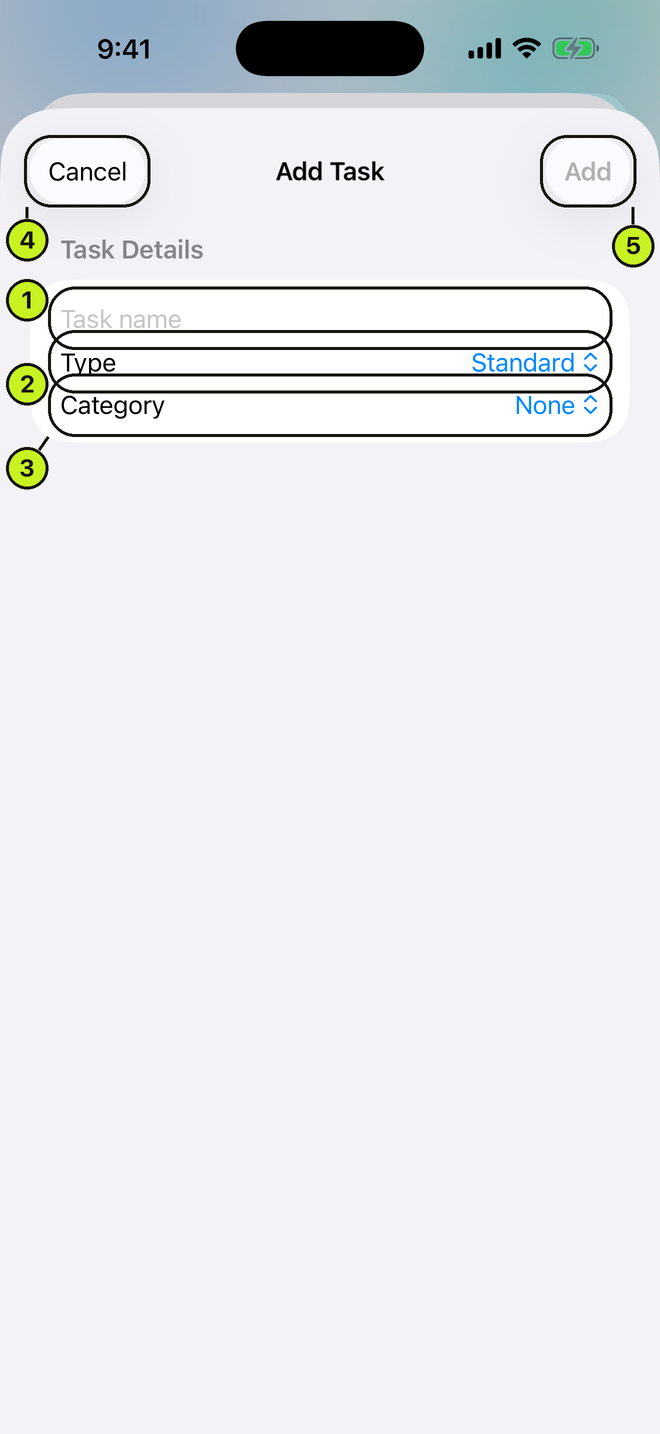
- 1. Task name
- 2. Type: standard, water, counter, steps, photo, video, audio
- 3. Category
- 4. Cancel
- 5. Add
Choosing Mark Complete on a water or counter task opens the counter sheet rather than ticking it outright — you still have to log the amount or tap Done.
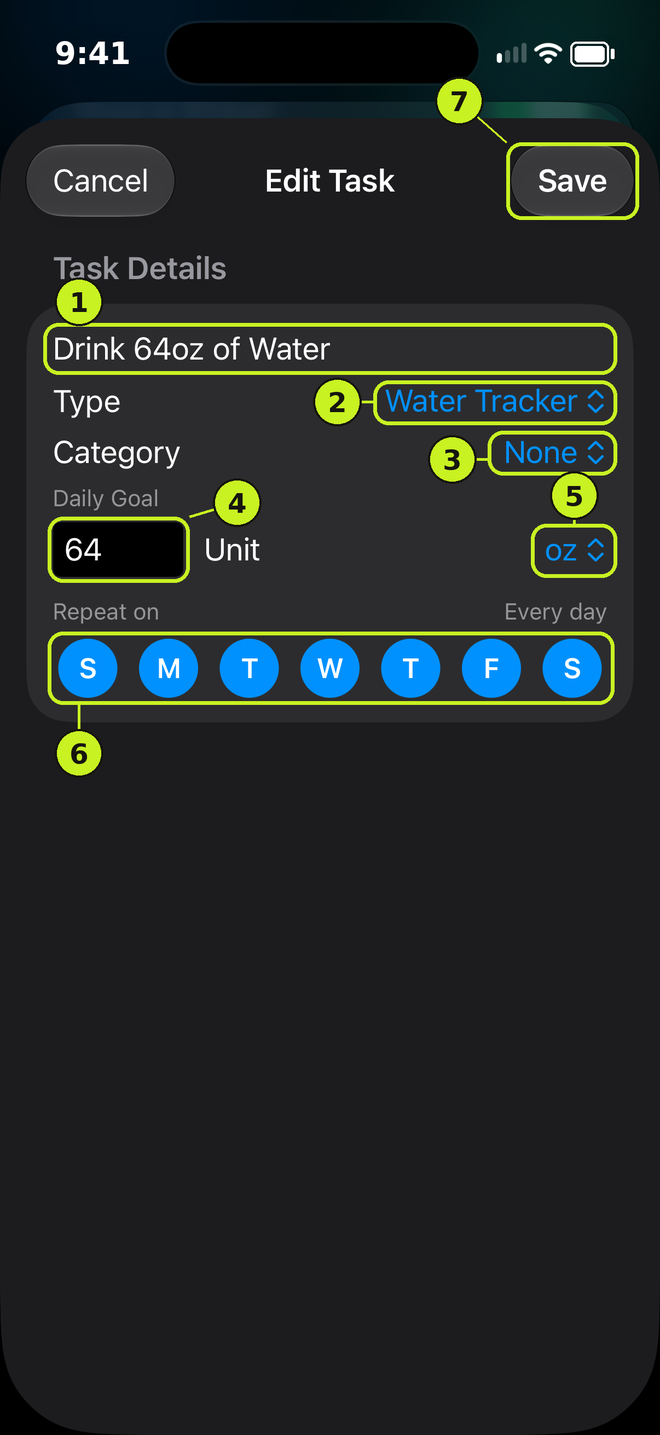
- 1. Task name
- 2. Type
- 3. Category
- 4. Daily Goal
- 5. Unit
- 6. Repeat on: the weekdays this task repeats
- 7. Save
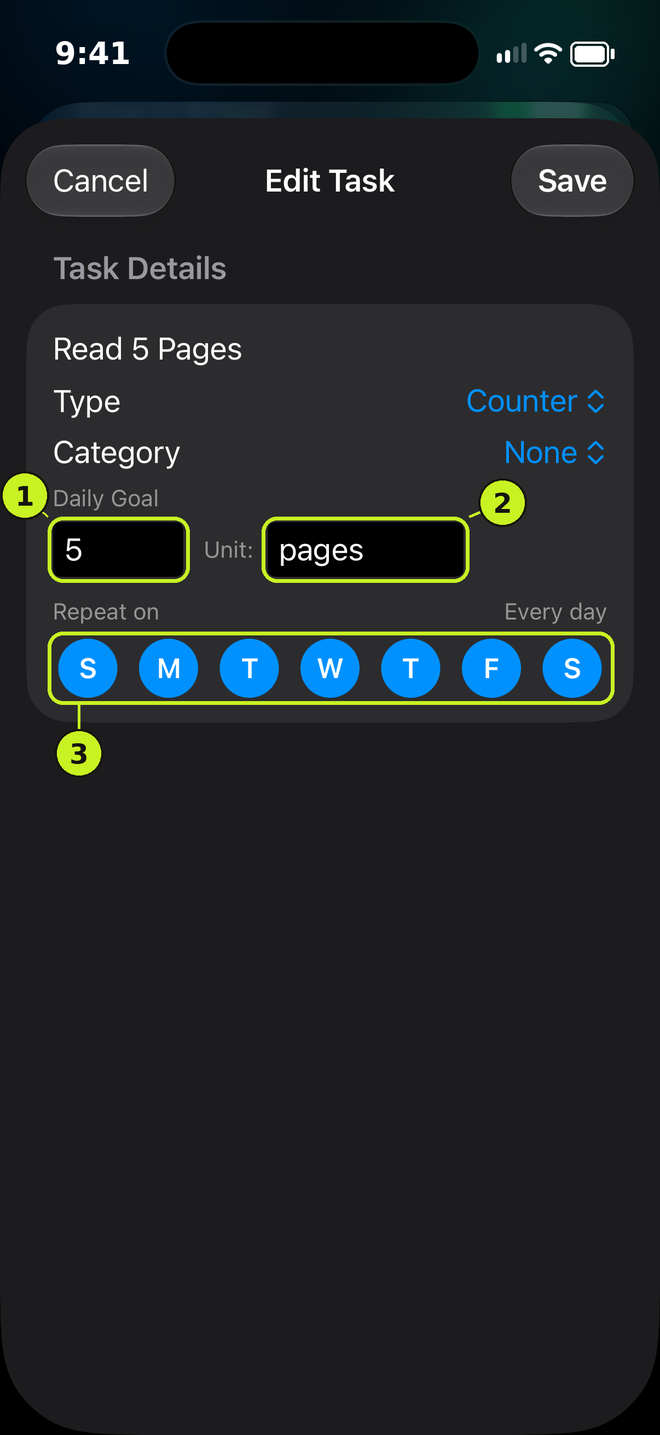
- 1. Daily Goal
- 2. Unit, typed freely (pages, reps, minutes)
- 3. Repeat on
Calendar & day detail
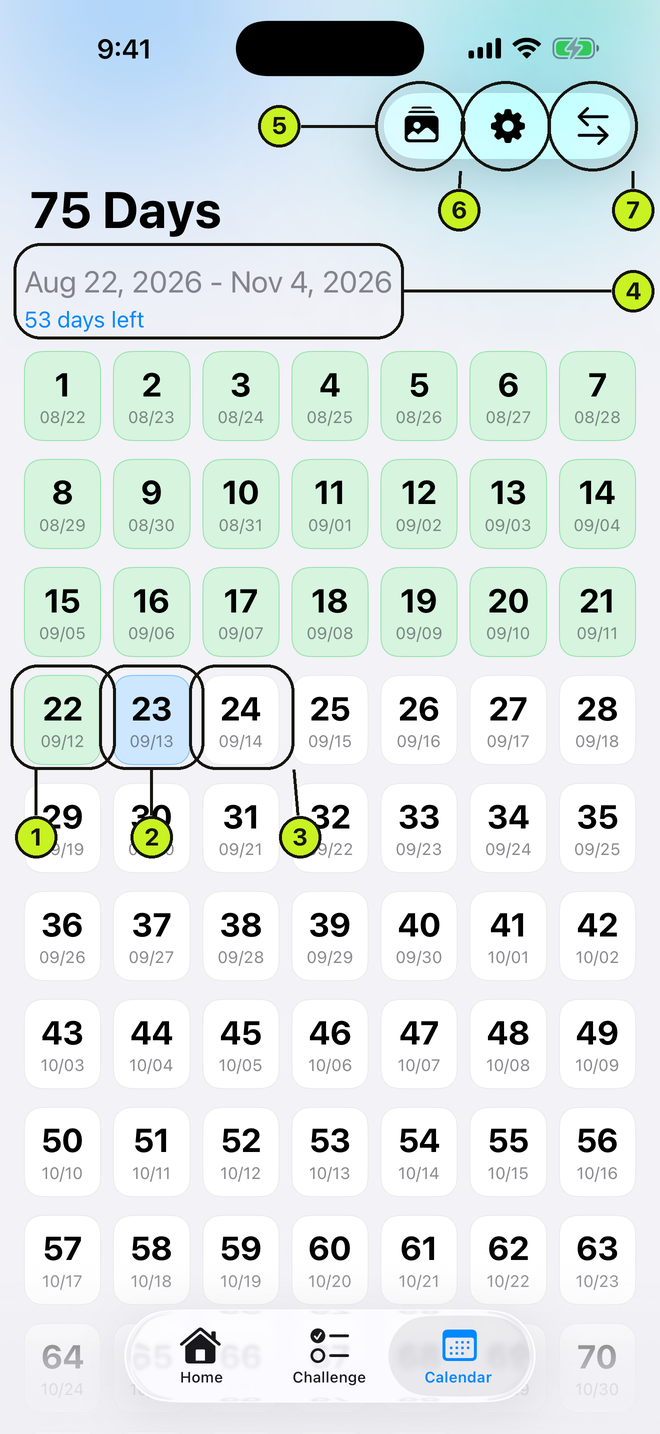
- 1. Completed day, green
- 2. Today, blue
- 3. A future day, still empty
- 4. Date range and days left
- 5. Gallery icon
- 6. ⚙ Challenge settings
- 7. ⇄ Switch challenge
- See the whole challengeCalendar tabOne numbered cell per day, with a camera badge on days that have media.
- Open a dayCalendar tab → tap a day cell
- Open this challenge's galleryCalendar tab → photo-stack icon (top right)
- Settings or switcherCalendar tab → ⚙ or ⇄ (top right)
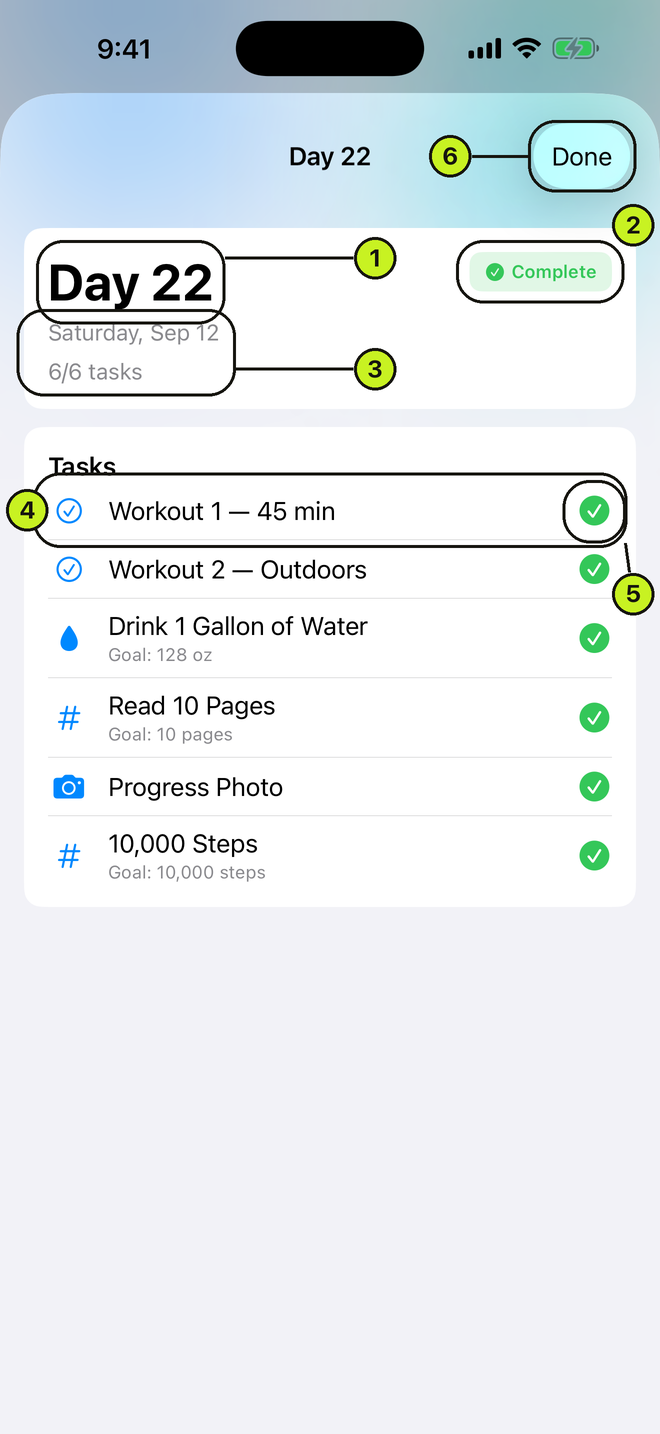
- 1. Day N
- 2. Status chip
- 3. Date and X/Y tasks
- 4. A task row
- 5. Its completion mark
- 6. Done — this screen is read-only
- Review a dayDay DetailStatus, task list with counter values, notes, and a media card.
- Open a media itemDay Detail → tap a thumbnail
- See everything from that dayDay Detail → View All Media for Day N
- Switch challengeDay Detail → Challenge picker at the topAppears when more than one challenge ran that day.
You cannot tick off a past day here. Day Detail is read-only. The only way to credit a missed day is the strict-mode dialog on the next launch, and only for the day that just ended.
A future cell shows "This day hasn't started yet."
Statistics
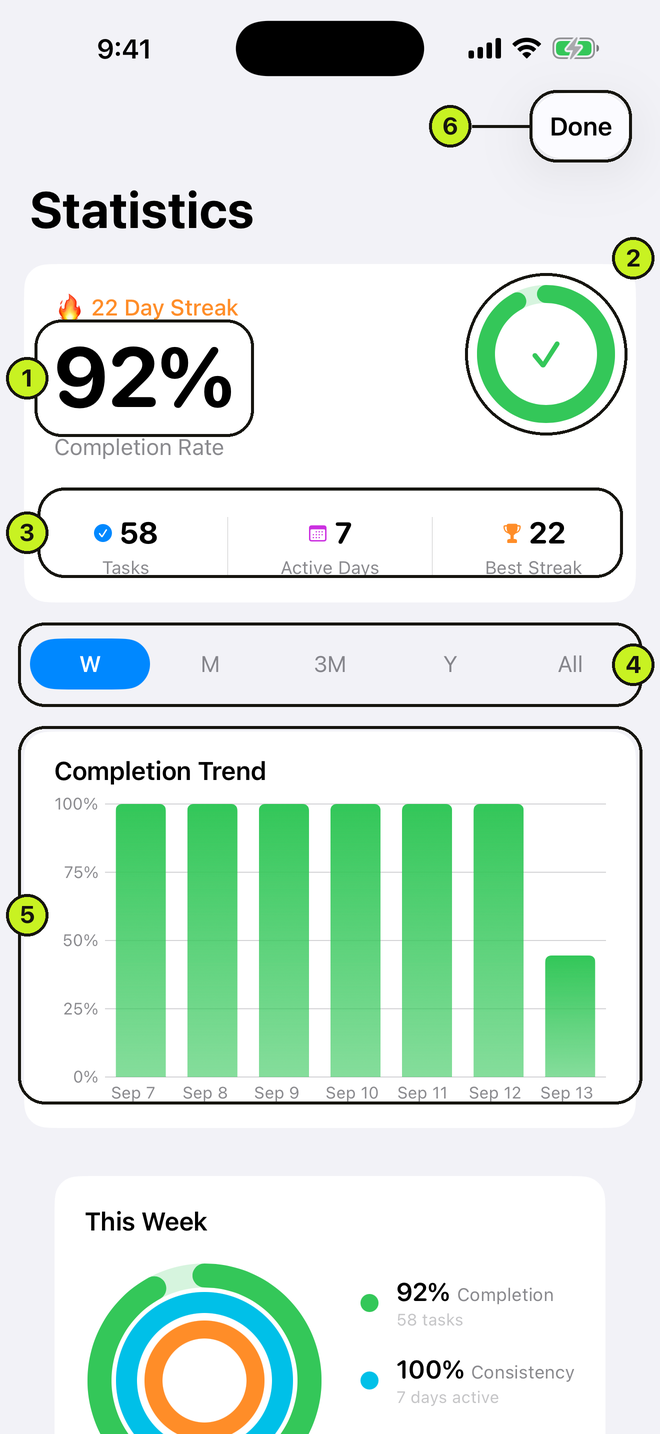
- 1. Completion rate
- 2. Its ring
- 3. Tasks, Active Days, Best Streak
- 4. Range control: W / M / 3M / Y / All
- 5. Completion Trend chart
- 6. Done
- Open StatisticsHome → Insights cardClose with Done, top right.
- Change the rangeStatistics → W (7 days) / M (30) / 3M (90) / Y (365) / All
- Inspect one dayStatistics → Completion Trend → tap a bar
- Jump to a challengeStatistics → tap a challenge rowAn active challenge opens its task list; an inactive one opens its settings, because it has no task view.
With no completions yet you see "No Statistics Yet."
Photos, video & voice notes
Capturing
- Take a progress photoChallenge tab → camera button on a photo taskNeeds camera permission. If it is off you get an Open Settings link instead of the viewfinder.
- Record a videoChallenge tab → video button on a video taskMaximum 60 seconds, medium quality. A thumbnail is made for you.
- Use an existing photo or clipCamera screen → Choose from Library
- Back outCamera screen → ✕ (top right)
- Record a voice noteChallenge tab → mic button on an audio taskNeeds microphone permission. No length limit.
- Pause, stop, re-recordRecorder → pause → stop → Re-record or SaveSave writes the file and completes the task; ✕ discards the take.
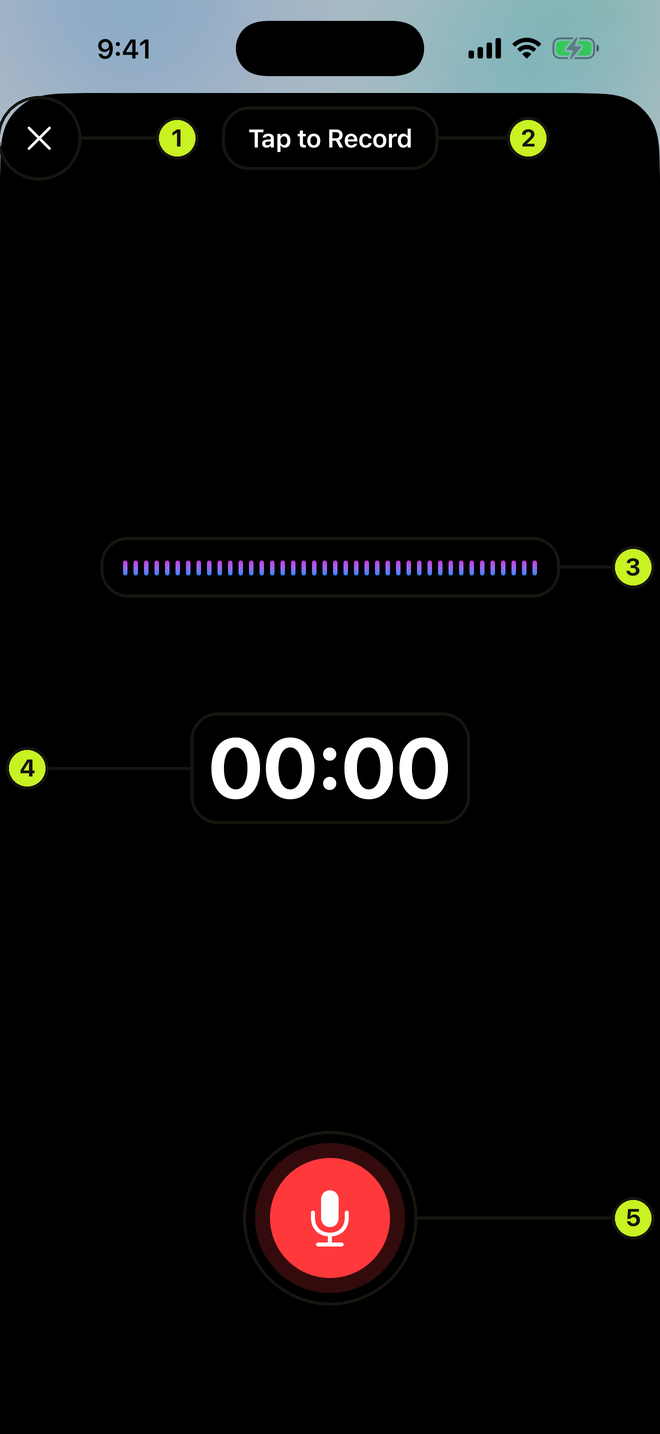
- 1. Close
- 2. Tap to Record
- 3. Waveform
- 4. Timer
- 5. Record button — tap to start, tap again to stop
Browsing
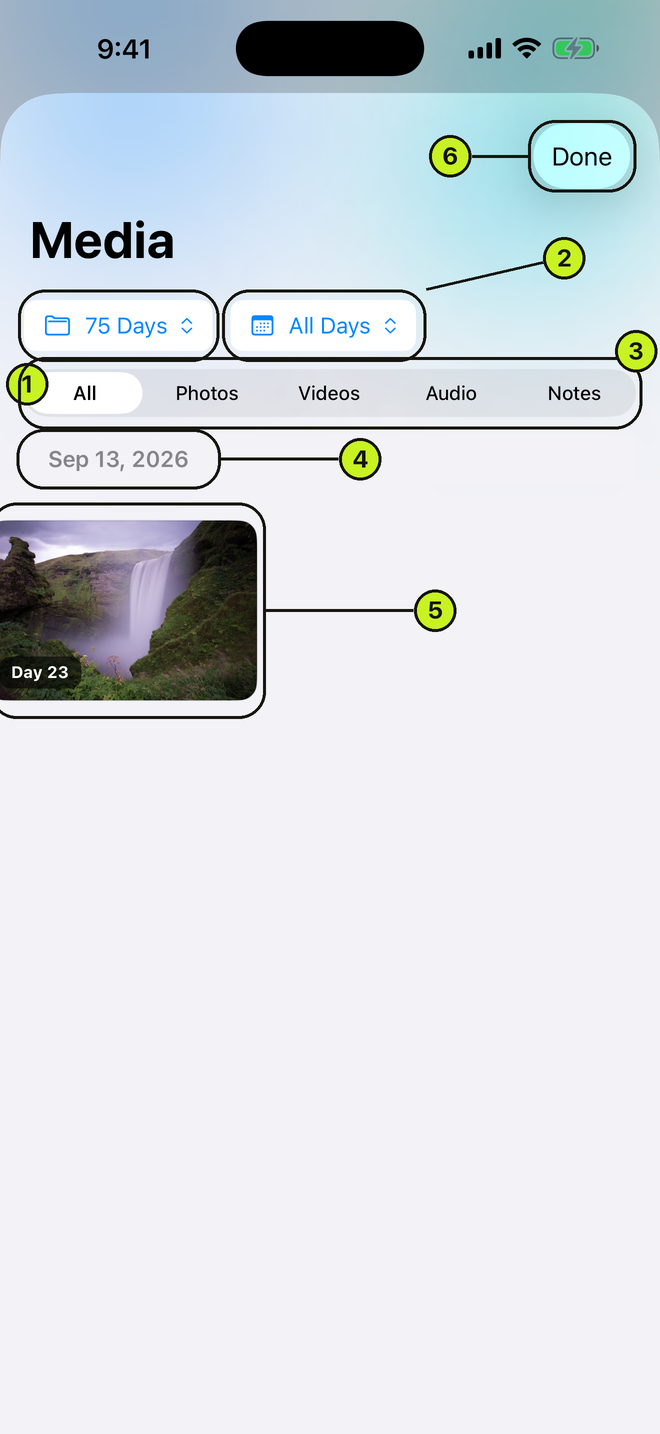
- 1. Challenge filter pill
- 2. Day filter pill
- 3. All / Photos / Videos / Audio / Notes
- 4. Date group header
- 5. A photo with its Day badge
- 6. Done
- Open the galleryHome → Your Journey → See All, or Calendar tab → photo-stack icon
- See one challenge's mediaGallery → challenge pill (top left) → pick a challenge
- See every challenge's mediaGallery → challenge pill → All Challenges
- See a single dayGallery → day pill → pick a dayChoose All Days to go back to everything.
- Show only one kindGallery → All / Photos / Videos / Audio / Notes
- Open an itemGallery → tap a thumbnail or audio row
- Act without openingGallery → long-press a thumbnail → Share / Save to Photos / Delete
- Delete a noteGallery → swipe a note rowDeletes immediately, with no confirmation.
Viewing
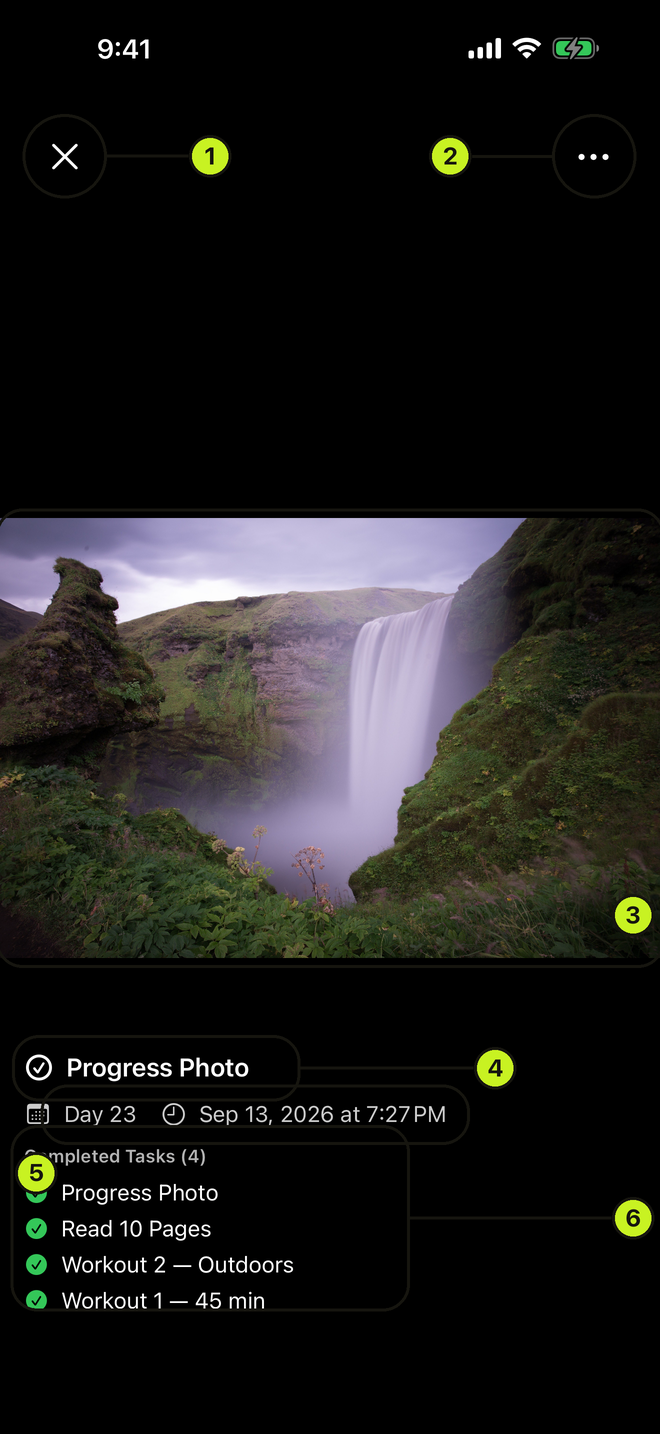
- 1. ✕ close
- 2. ⋯ for Save to Device, Share, Delete
- 3. The media — pinch to zoom, swipe down to dismiss
- 4. Its task
- 5. Day N and date
- 6. Everything else finished that day
- Move between itemsViewer → swipe left or right
- Zoom a photoViewer → pinch 1× to 5×, drag to pan, double-tap to toggle 1×/2×
- Play a voice noteViewer → play/pause, rewind 10s, forward 10s, or scrub the waveform
- Save a copyViewer → ⋯ → Save to DevicePhotos and videos go to your Photo Library. Audio opens the share sheet instead, so save it via Files.
- ShareViewer → ⋯ → Share
- DeleteViewer → ⋯ → Delete → DeleteThis erases the file from the device. There is no trash and no undo.
Swiping in the viewer ignores your filters. Keep swiping and you can land on media from another day or another challenge.
Photos and videos are only copied to your iOS Photo Library when Settings → Media → Save Photos / Videos to Phone is on. The first such save asks for the system Photos permission.
Managing challenges
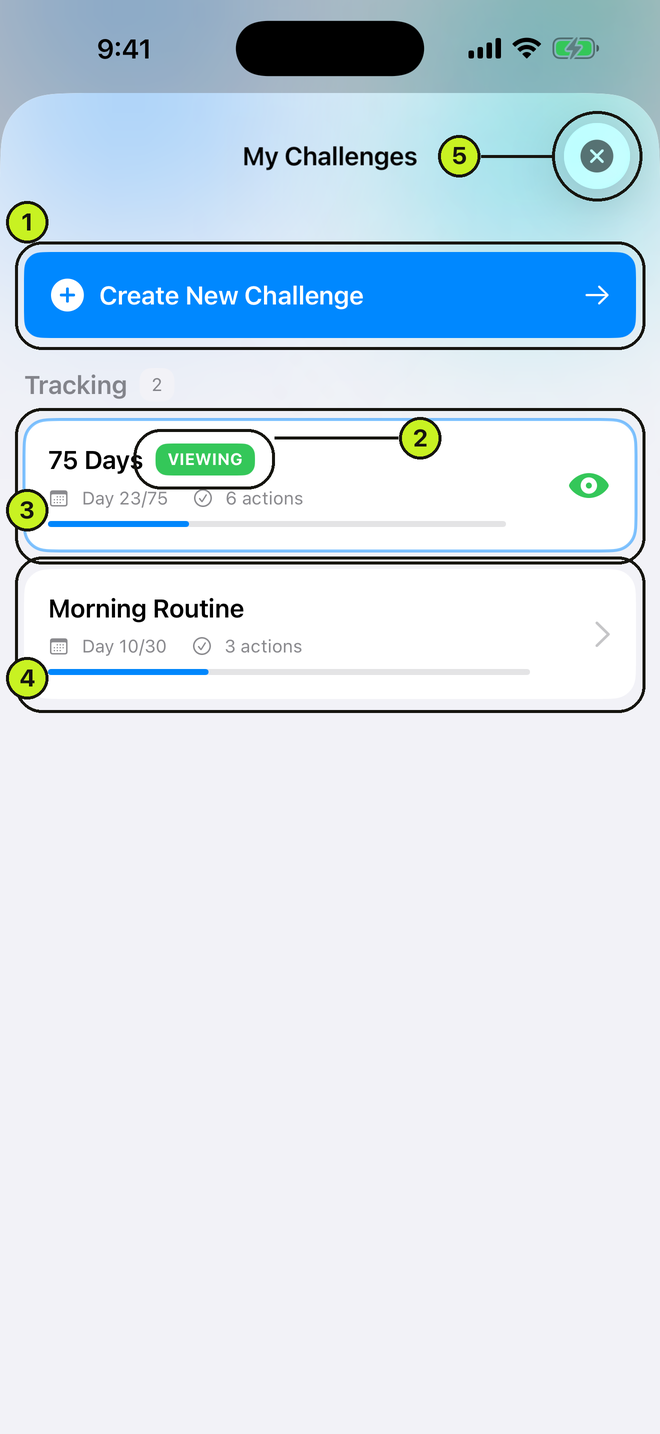
- 1. Create New Challenge
- 2. The VIEWING badge on the current one
- 3. Tracking card: day counter, actions, progress bar
- 4. A second tracked challenge
- 5. ✕ close
The switcher
- Open itChallenge tab or Calendar tab → ⇄ (top right)Only present when more than one challenge is active.
- SwitchSwitcher → tap a card under Tracking
- Pause an active challengeSwitcher → swipe an active card left → Pause
- ReactivateSwitcher → swipe an inactive card right → Activate
- CloneSwitcher → swipe an inactive card right → CloneThe copy is inactive.
- DeleteSwitcher → swipe an inactive card left → DeleteTasks, completions, and media all go.
- Tidy up stray entriesSwitcher → Clean Up (top left)Only appears when leftover "New Challenge" placeholders exist. Your real challenges are untouched.
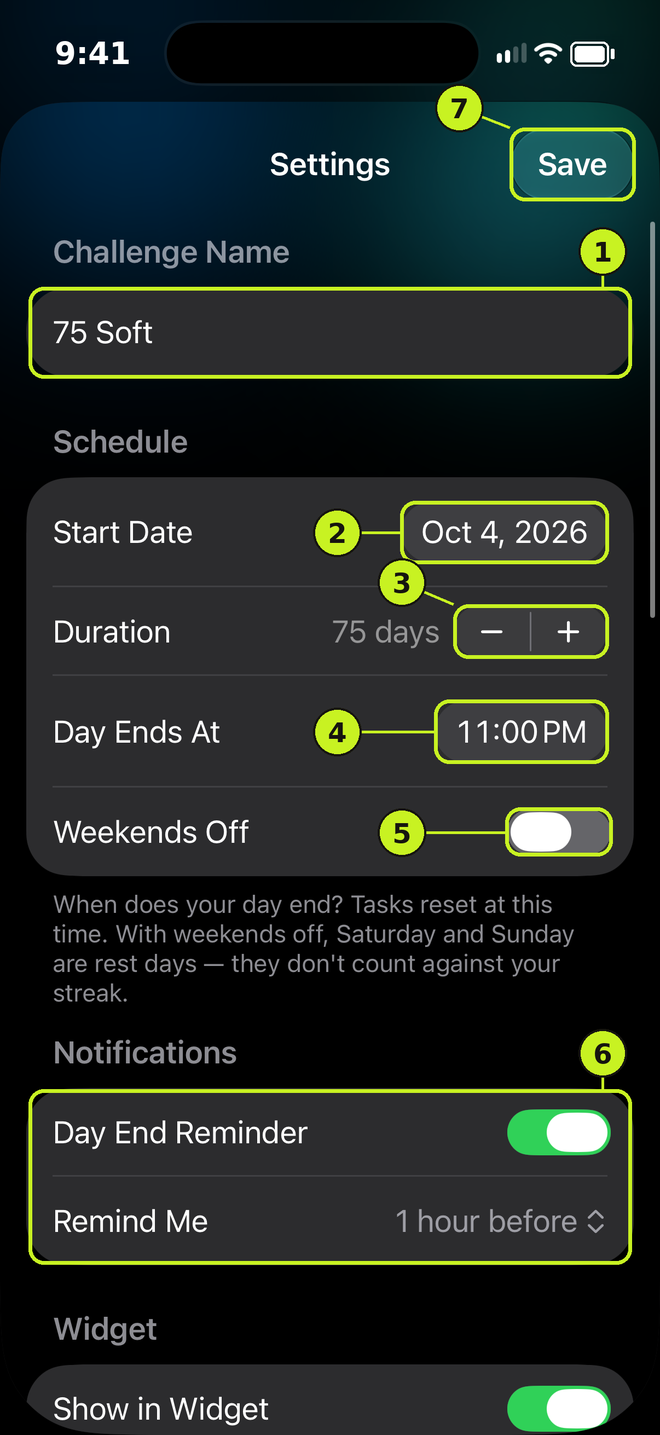
- 1. Challenge Name
- 2. Start Date
- 3. Duration, 1 to 365 days
- 4. Day Ends At
- 5. Weekends Off
- 6. Day End Reminder and Remind Me
- 7. Save
Per-challenge settings
Reach it from the Challenge tab ⚙, the Calendar tab ⚙, a long-press on a Home card, or the switcher. This is a different screen from the app-wide Settings, even though both are labelled "Settings."
- RenameSettings → Challenge Name
- Change start date, length, or day-end timeSettings → Schedule → Start Date / Duration / Day Ends AtA future start date converts the challenge to scheduled when you save. Duration runs 1 to 365 days.
- Take weekends offSettings → Schedule → Weekends OffSaturday and Sunday become rest days and don't count against your streak.
- Show this challenge in the widgetSettings → Widget → Show in WidgetOnly one challenge can be shown in the widget at a time.
- Change strict or flexibleSettings → Day Transition Behavior → Challenge Mode
- Reorder tasksSettings → Tasks → long-press a task → drag it up or down → SaveOr tap Edit and drag the handles. The new order is the order tasks appear on the Challenge tab.
- Edit a taskSettings → Tasks → pencil → change the name, type, category, daily goal, unit, or repeat days → Save
- Add a taskSettings → Tasks → Add Task
- Delete a taskSettings → Tasks → trashAll completion data for that task is lost.
- Make an inactive challenge activeSettings → Challenge Actions → Make Active
- DuplicateSettings → Challenge Actions → Duplicate Challenge → DuplicateThe copy is named "(Copy)", starts inactive, and does not take the widget slot. Its settings open right away.
- Complete earlySettings → Challenge Actions → Complete Challenge → CompleteMoves it to your history, releases the widget slot, and stops its notifications.
- Restart from Day 1Settings → Challenge Actions → Start New Attempt → Start OverDeletes every completion, zeroes counters, and resets the start date to today. The challenge itself is kept.
- DeleteSettings → Delete Challenge → DeleteTasks, completions, photos, videos, and audio are all permanently removed.
- SaveSettings → Save (top right)Disabled while the name is empty.
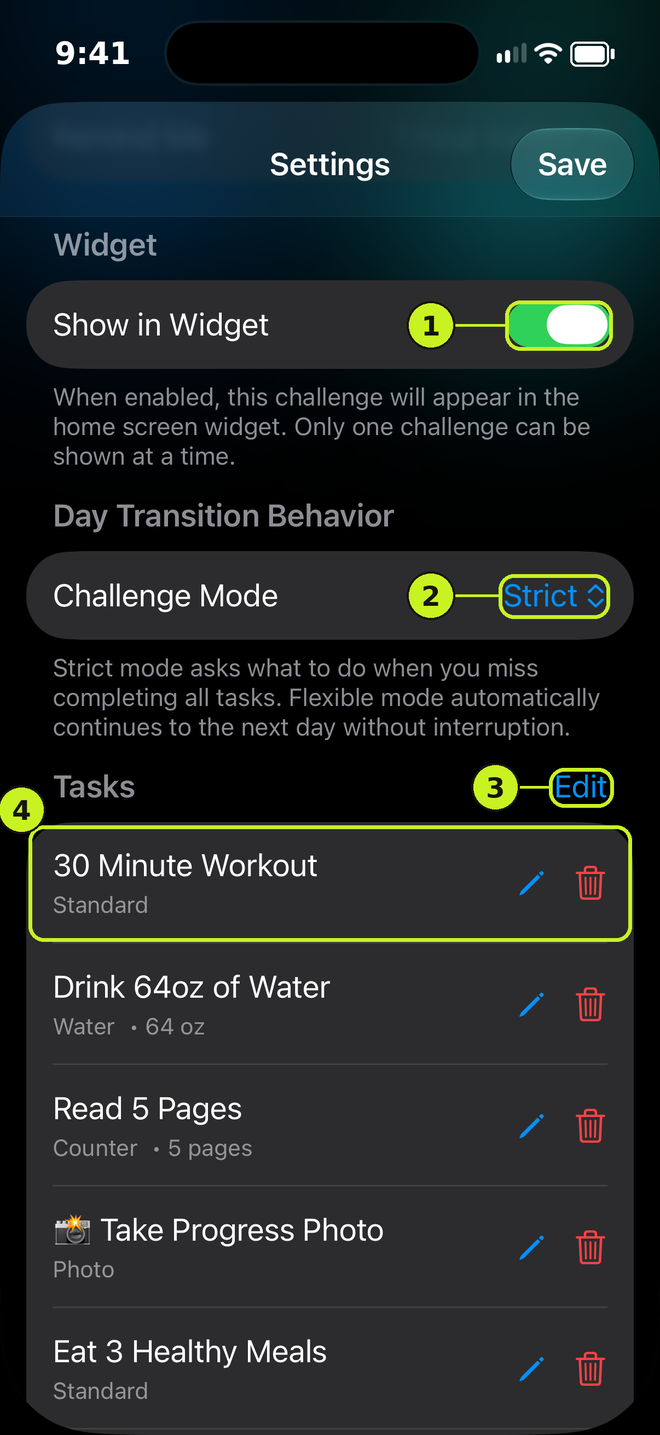
- 1. Show in Widget
- 2. Challenge Mode: Strict or Flexible
- 3. Edit shows drag handles
- 4. Or long-press a task and drag it
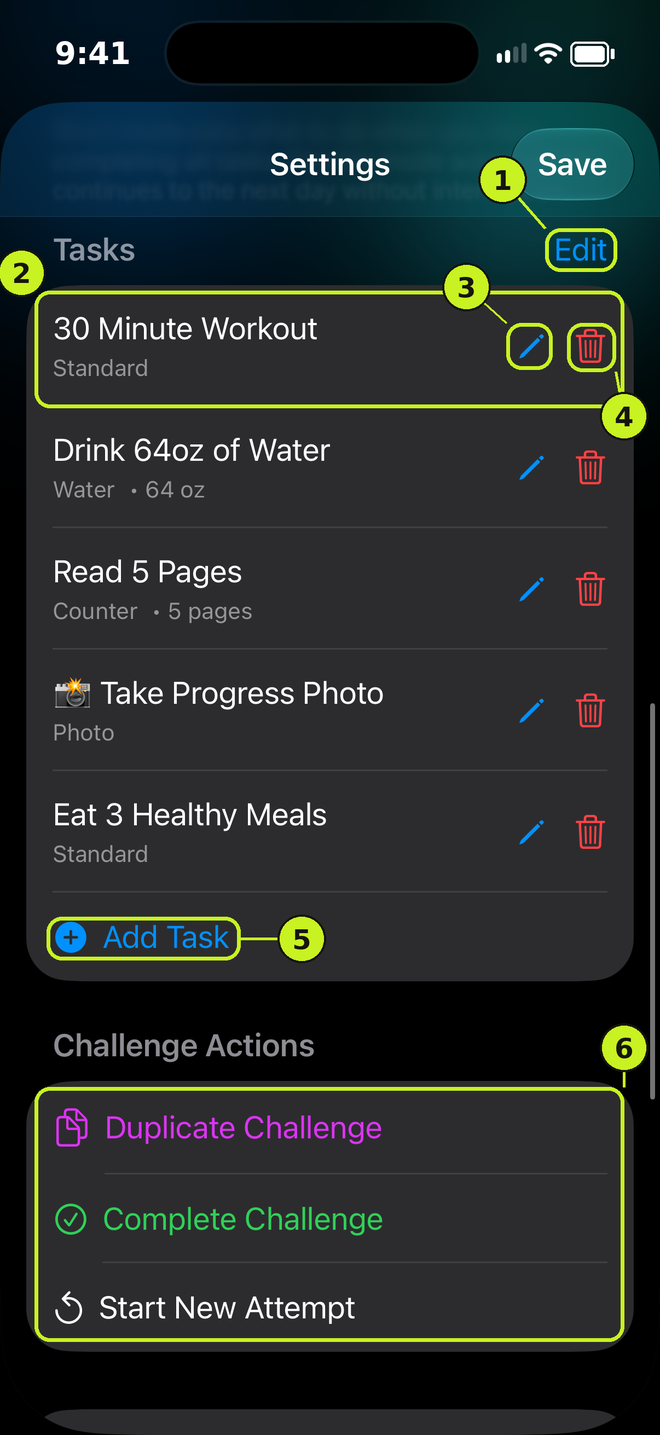
- 1. Edit shows drag handles
- 2. Long-press a task and drag to reorder
- 3. Pencil edits the task
- 4. Trash deletes it
- 5. Add Task
- 6. Challenge Actions: Duplicate, Complete, Start New Attempt
Creating more challenges
- From the dashboardHome → + (top right) → pick a programThe start date is pre-suggested as the day after your current challenge ends.
- Read about a program firstTemplate picker → Learn More → Start Challenge
- Build from scratchTemplate picker → Custom Challenge
- Habit StackingTemplate picker → Habit StackingOpens its own setup flow where you define "After [existing habit], I will [new habit]" pairs; those become the tasks.
- Schedule a future startNew-challenge settings → Start Date → a future day → SaveThere is no separate "schedule for later" toggle. A future start date is the schedule.
Upcoming, history, and finishing
- Browse past challengesAll ChallengesName, start date, completion percentage, duration, and task count. The gear opens its settings.
- Start a scheduled one nowUpcoming → Start Now → StartThis one deactivates your other active challenges.
- Cancel a scheduled oneUpcoming → Cancel → Yes, CancelDeletes it outright.
- Review a finished challengeAutomatic on launch after the last dayA summary with Longest Streak, Tasks Done, Completion %, and Days Missed. Reminders for that challenge are turned off.
- Go againCompletion summary → Start AgainResets to Day 1 today and deletes the old completions.
- Extend insteadCompletion summary → Extend Challenge → Add 7 / 30 / original duration daysYour existing days and streaks are kept. Days since the challenge ended count as missed.
Running several challenges at once triggers warnings, not blocks. There is no hard limit. The switcher shows a one-time "Too Many Active Challenges" alert that never returns once dismissed; challenge settings and the create flow show a separate "Multiple Active Challenges" alert every time. Both let you continue.
Reminders & notifications
- Daily day-end reminderChallenge settings → Notifications → Day End Reminder → Remind Me: 1 / 2 / 3 hoursFires that many hours before this challenge's day-end time.
- Per-task reminderChallenge tab → long-press a task → Set Reminder → Every Day or Select Days → Time → Save ReminderSwiping a task left → Remind opens the same screen.
- Remove a task reminderChallenge tab → long-press a task → Remove ReminderOr swipe the task left → Remove.
These fire on their own, with no setting to change:
- Trial ending — 9:00 AM, two days before your trial converts. Cancelled automatically if the subscription ends or is refunded.
- Challenge Started! — when a scheduled challenge activates.
- Step goal reached — once a day, when a steps task hits its target.
Notification permission is asked for the first time something tries to schedule a reminder. If you denied it, scheduling silently does nothing — turn it back on in iOS Settings → Notifications → FlexChallenge. Reminders for deleted or paused challenges are cleaned up at launch.
Widgets
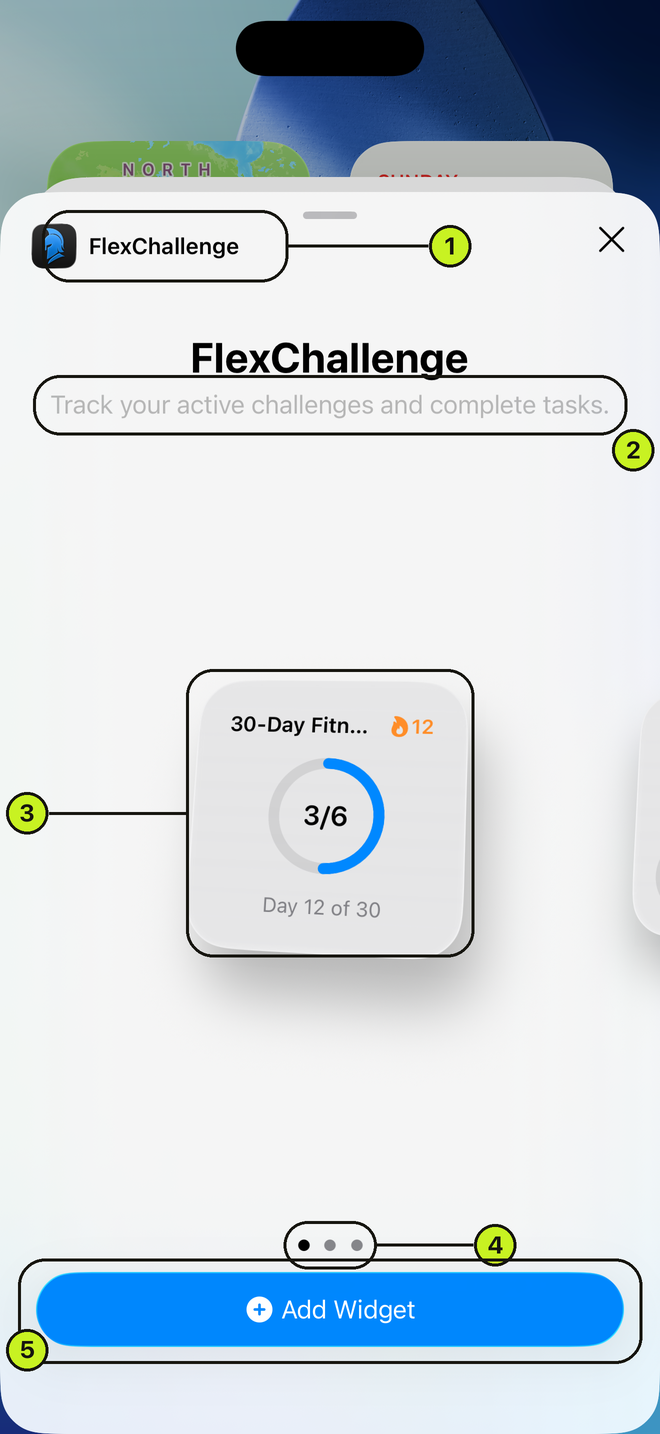
- 1. FlexChallenge in the iOS widget gallery
- 2. What the widget does
- 3. Small size: name, streak, ring, Day X of Y
- 4. Dots — swipe for Medium and Large
- 5. Add Widget
- Add the widgetHome Screen → long-press → + → FlexChallenge → Small, Medium, or LargeHome Screen only. There is no Lock Screen or StandBy widget.
- Choose which challenge it showsChallenge settings → Widget → Show in WidgetOnly one challenge can hold the slot. Turning it on elsewhere asks to replace the current one.
- Open the app on that challengeTap the widget body
- Complete a task from the widgetTap the circle on a standard or media task row
- Add water or count from the widgetTap the labelled button on the right of the rowIt adds a smart amount based on the target — "16 oz", "glass", "+5" — and the label tells you what it will add.
- Capture media from the widgetTap the icon on a photo, video, or audio rowOpens the app on the right capture screen.
Sizes: Small shows name, streak, ring, and "Day X of Y". Medium adds up to three incomplete tasks. Large adds up to five plus a stats grid when the day is done.
Steps tasks are read-only in the widget — ring only, no toggle. Sync them in the app.
Completed tasks disappear from the widget list, so there is no way to uncomplete one from the Home Screen.
iOS refreshes widgets about every 15 minutes, less often when there is nothing to show. Your own taps refresh it immediately; a value that looks briefly stale right after switching apps is normal.
Subscription & restore
- Check your statusHome → ⋯ → Settings → SubscriptionShows Active or Inactive plus the plan.
- Change or cancel the planSettings → Subscription → Manage SubscriptionOpens Apple's own sheet. The app cannot cancel on your behalf.
- Restore a purchaseSettings → Subscription → Restore PurchasesAlso available on the welcome screen and on any paywall. You will never be charged twice.
- Trial length comes from the App Store, and eligibility is one trial per Apple Account for life. Having subscribed before routes you to the paid paywall.
- Offline for a while? Access continues for up to 7 days after the last successful check. Past that it is denied until the app can reach the store.
- If the subscription lapses, the app opens on a resubscribe screen. Nothing is deleted. Every challenge, completion, photo, and streak is still on your device and reappears the moment you resubscribe.
Backup & restore
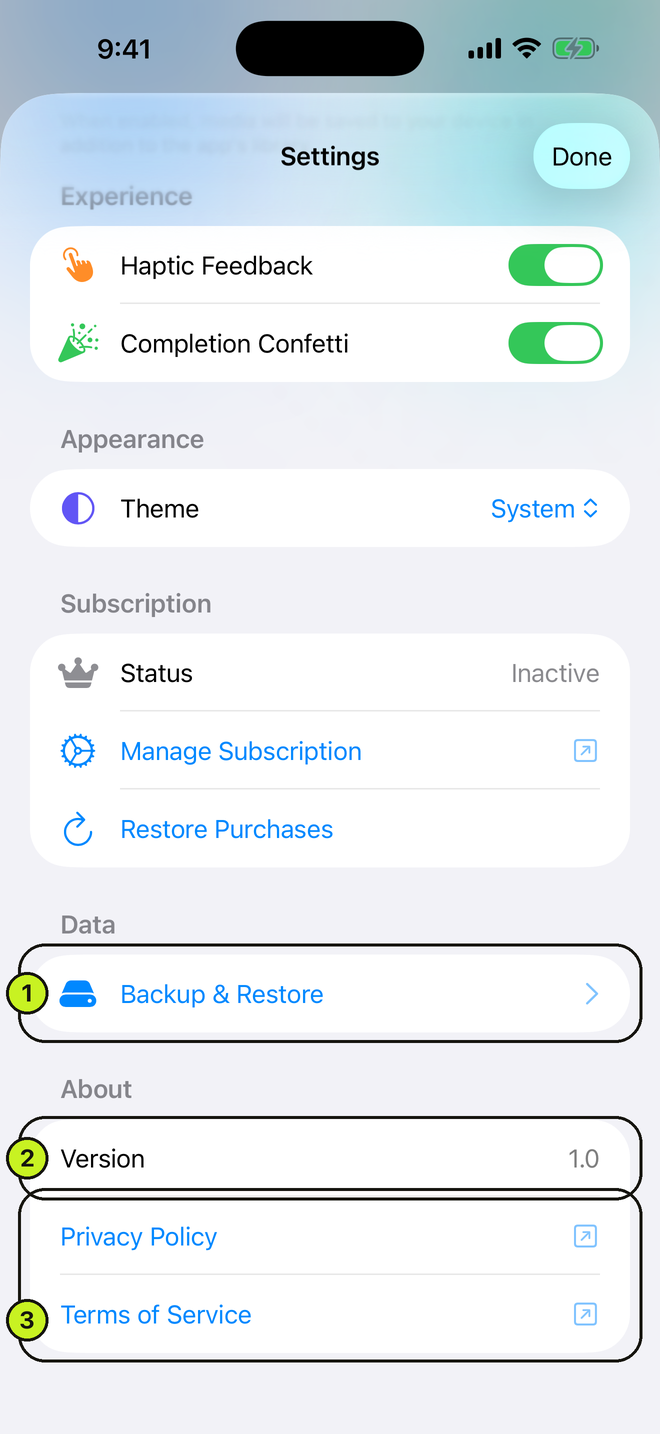
- 1. Data → Backup & Restore
- 2. Version
- 3. Privacy Policy and Terms of Service
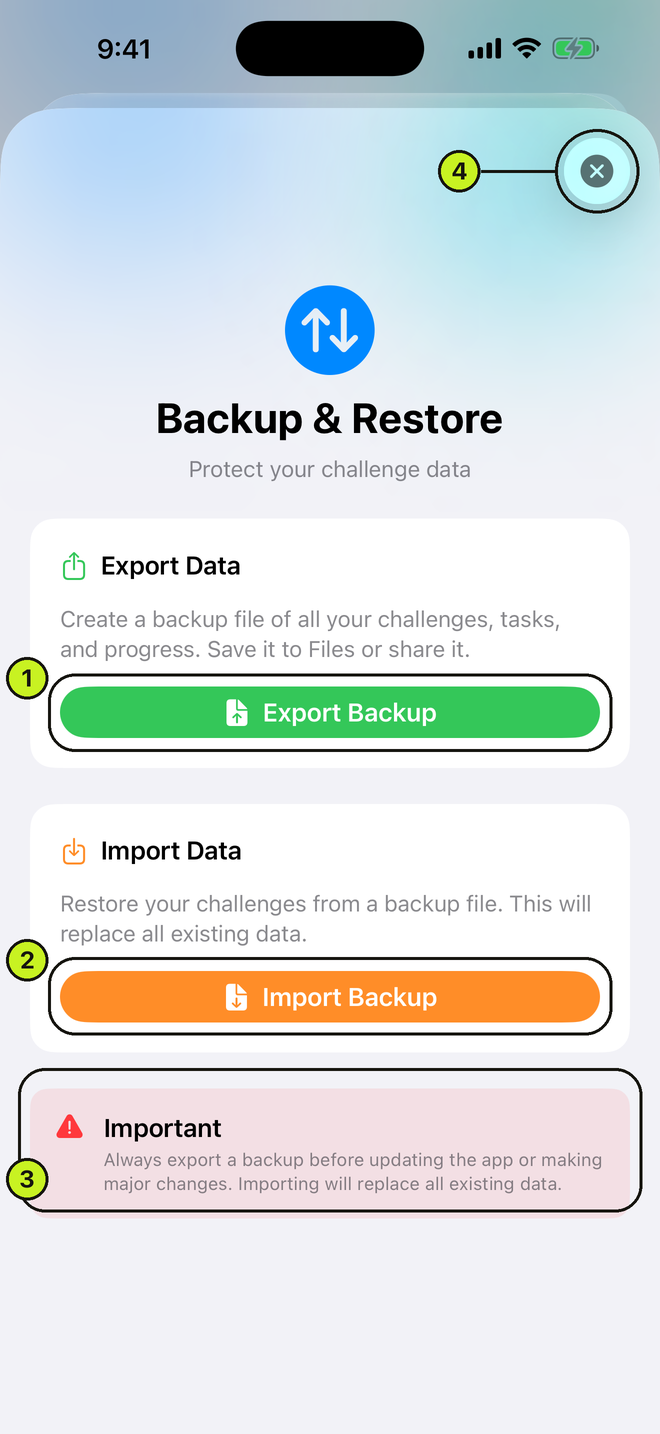
- 1. Export Backup writes one JSON file
- 2. Import Backup reads one back
- 3. Import replaces everything — read this first
- 4. ✕ close
- Export a backupHome → ⋯ → Settings → Data → Backup & Restore → Export BackupWrites one JSON file (default name FlexChallenge_Backup) and lets you save it anywhere — Files, iCloud Drive, AirDrop. Nothing is changed on the device.
- Import a backupBackup & Restore → Import Backup → pick a .json → Replace
Import replaces everything; it does not merge. Every existing challenge, task, and completion is deleted before the backup is loaded, and their notifications are cancelled. Export a fresh backup before importing an old one.
Media is not in the backup file. Photos, videos, and voice notes live as files on the device. The JSON carries challenges, tasks, and completions only.
Settings
App-wide settings: Home → ⋯ (top right) → Settings. Close with Done.
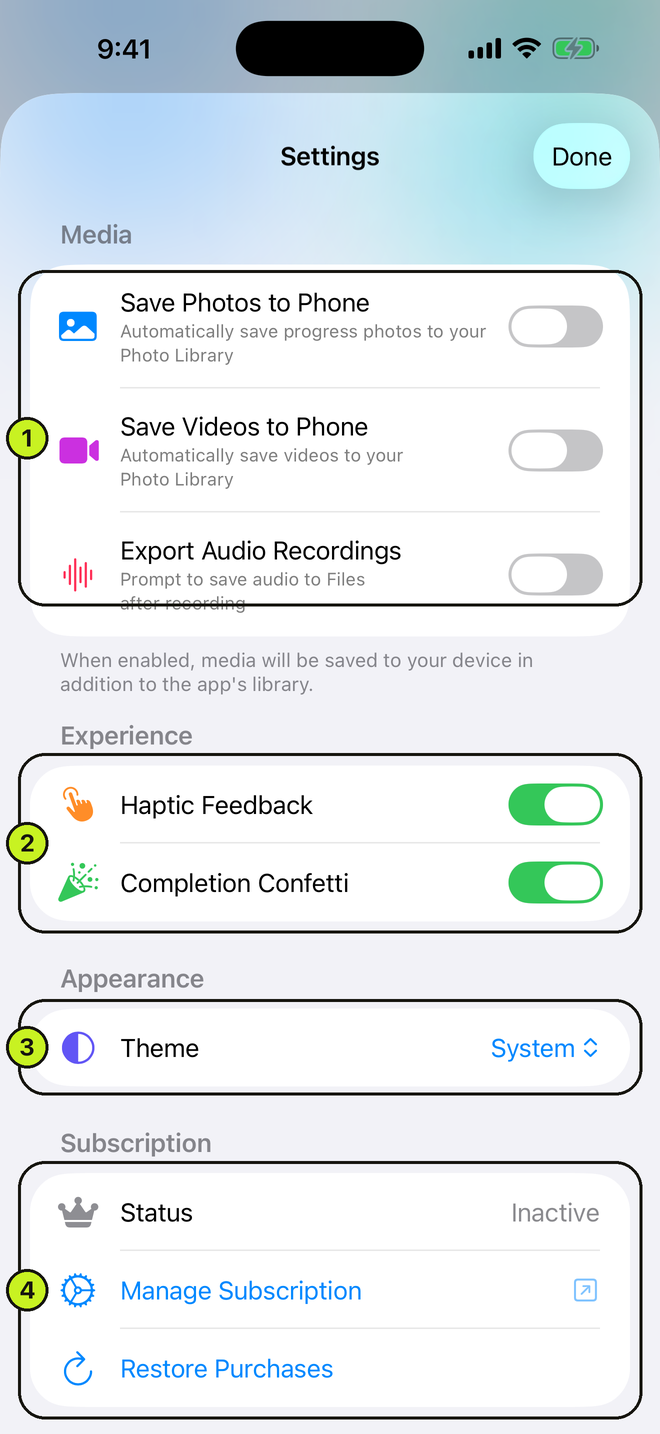
- 1. Media toggles
- 2. Haptic Feedback and Completion Confetti
- 3. Theme
- 4. Subscription status, Manage, Restore
- Save Photos to PhoneSettings → Media → Save Photos to PhoneAlso copies each progress photo into your iOS Photo Library.
- Save Videos to PhoneSettings → Media → Save Videos to PhoneSame for video clips.
- Export Audio RecordingsSettings → MediaPrompts to save each voice note to Files after recording.
- Haptic Feedback / Completion ConfettiSettings → ExperienceBoth on by default.
- Dark or light modeSettings → Appearance → Theme → System / Light / DarkSystem follows your iPhone's setting.
- Version, Privacy Policy, TermsSettings → About
Troubleshooting & gotchas
"My day didn't roll over until I opened the app"
That is by design. The rollover check runs when the app launches or returns to the foreground, never on a background timer. Opening the app after midnight is what advances the day, resets your counters, and activates any challenge scheduled to start.
"It marked my challenge complete and I wasn't done"
A challenge whose last day has passed is moved to Completed automatically, whether you hit every task or none. It is a statement about the calendar, not about success. Use Extend Challenge on the summary to add days, or Start Again to restart.
"Strict mode stopped me on launch"
With a strict challenge and an incomplete previous day you get a blocking dialog with three choices: Mark All Complete & Continue, Continue Without Marking, or Start Challenge Over. The third opens a second confirmation offering Keep Media or Delete Media. A restart is never automatic — it always takes two confirmations. With several challenges affected you see them one at a time, labelled "Challenge X of Y".
"My steps aren't updating"
Steps need Apple Health permission, and denying it produces no error — the task just stops tracking and you complete it by hand. Grant access in iOS Settings → Health → Data Access & Devices → FlexChallenge, then tap the green sync button. The app reads steps only and never writes to Health.
"A task ticked itself, or unticked itself"
Water, counter, and steps tasks complete when they reach the target and uncomplete if the number falls back below it. Tick the task by hand and your choice is preserved instead.
"My video stopped recording"
Video capture is capped at 60 seconds.
"Start Now turned off my other challenges"
Upcoming → Start Now activates that challenge and deactivates every other active one. Reactivate the others from the switcher: swipe an inactive card right → Activate.
"My subscription ran out — did I lose everything?"
No. Nothing is deleted when a subscription lapses. Your challenges, completions, and media are all intact and return as soon as you resubscribe or restore. If you do not plan to resubscribe, export a backup first — your data lives only on your device, so we have no copy to recover for you.
"The widget is behind"
iOS schedules widget refreshes roughly every 15 minutes. Open the app to force one.
Still stuck?
Email support@flexchallenge.app and tell us your iOS version and what you were doing when it went wrong. We read everything.
You can also reach this from inside the app: Home → ⋯ → Help & Support → Contact Support.